Create Fresh Setup
Brand-new to WhatsApp Business API? Learn how to generate a brand-new virtual or physical number, verify with SMS OTP, and initialize your WABA profile.
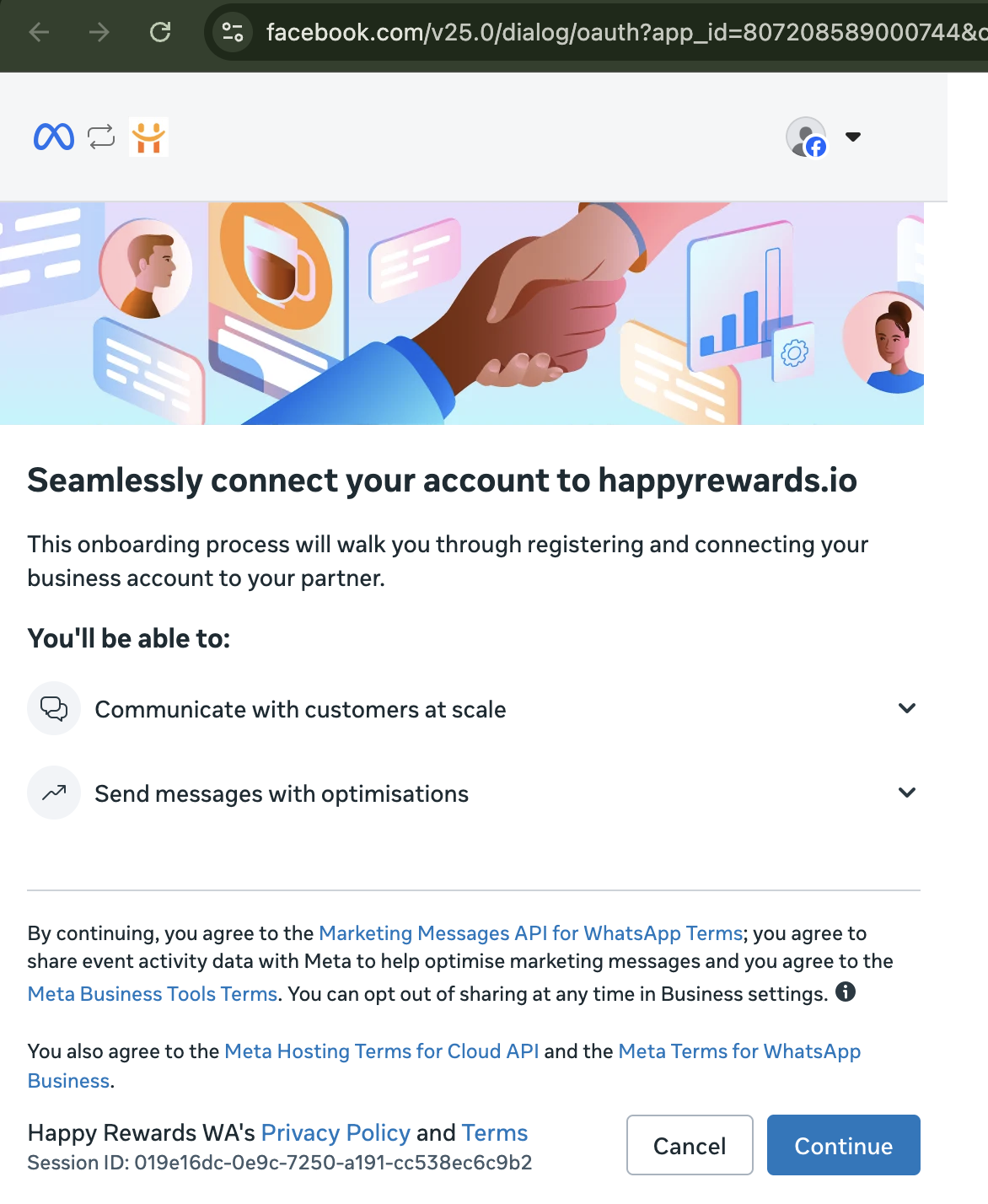
Welcome Screen Instructions
Seamlessly connect your WhatsApp business account to our workspace. This onboarding process will walk you through registering and connecting your business account to your partner. You will be able to communicate with customers at scale and send messages with optimization.
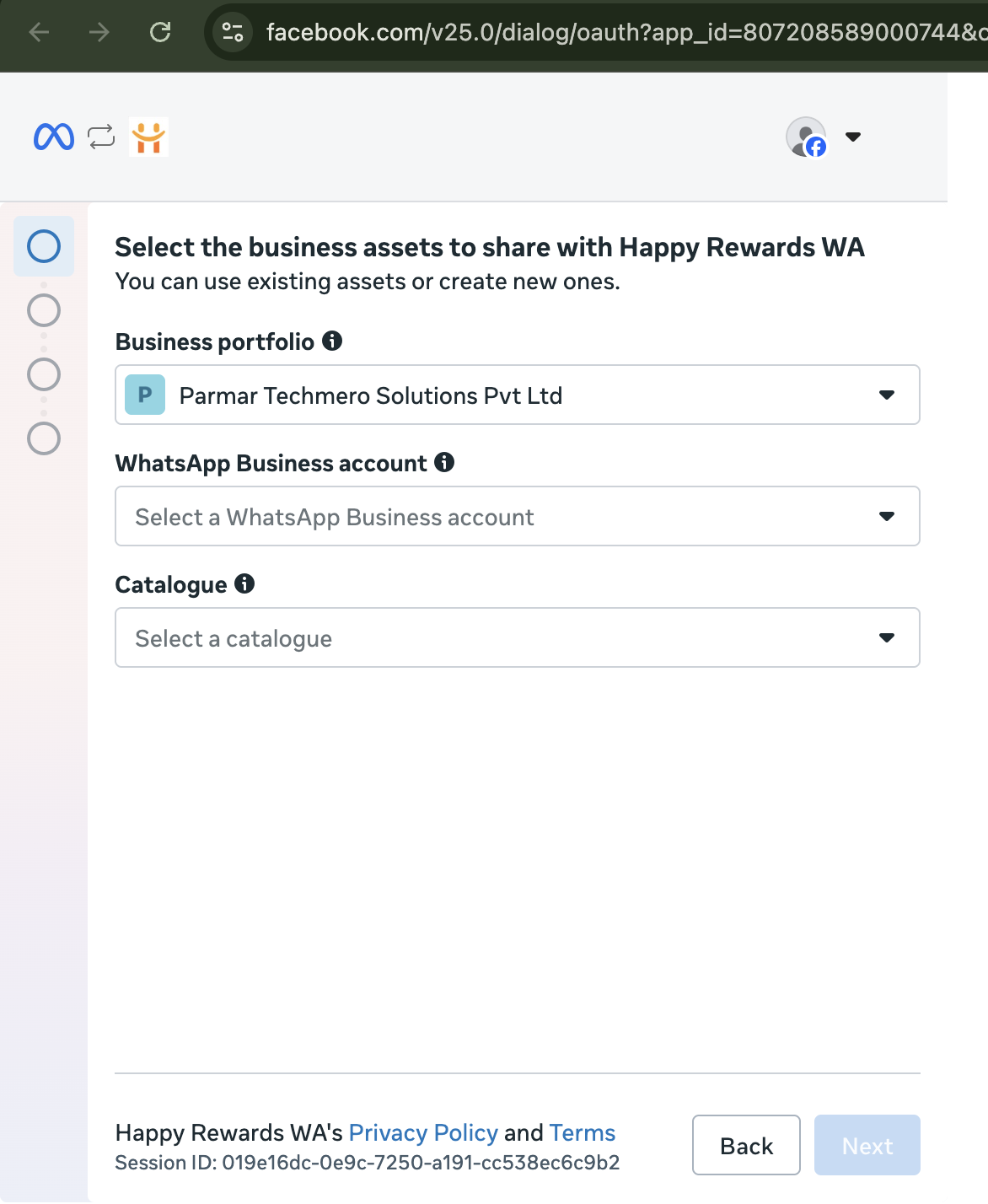
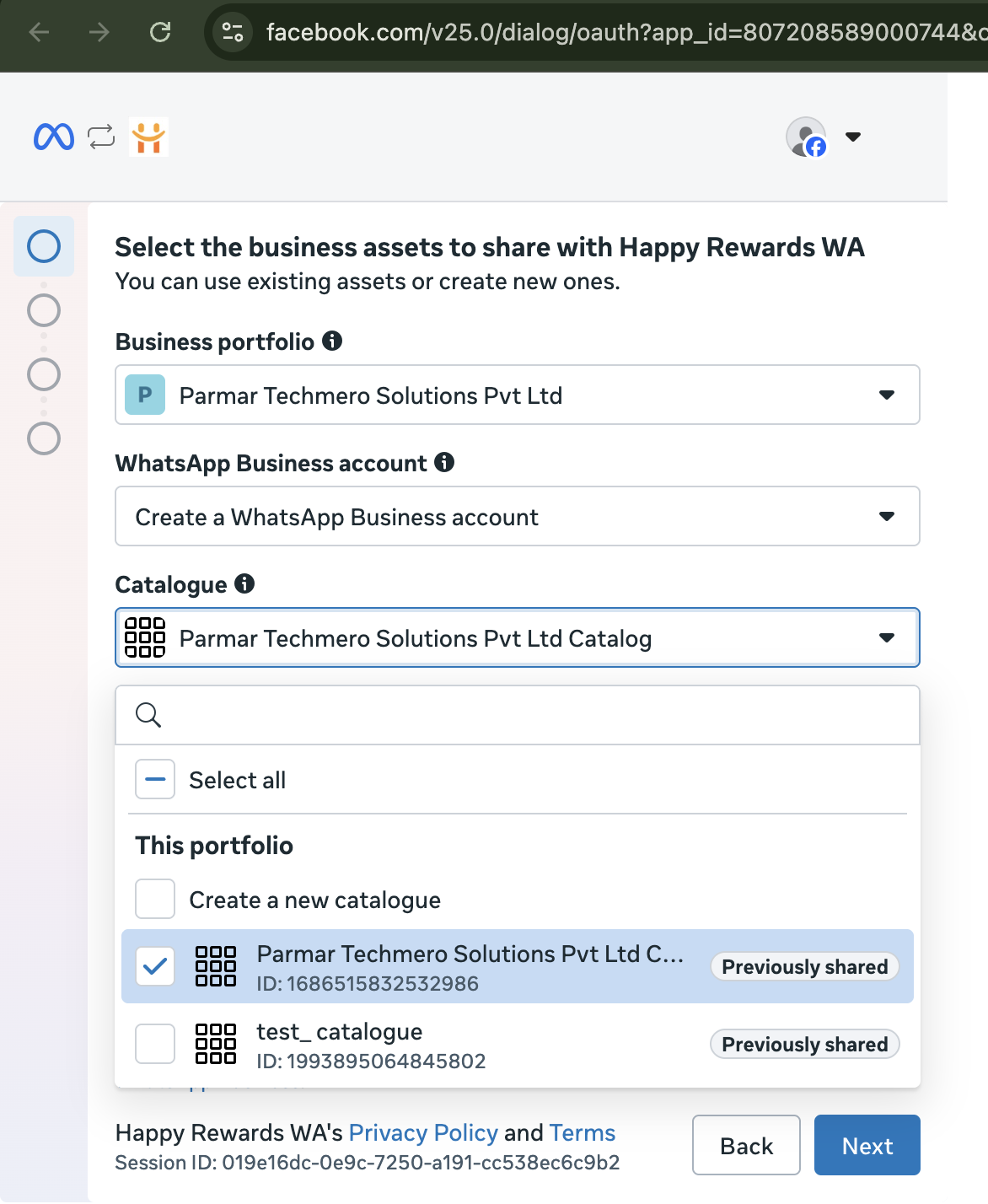
Select Business Portfolio
Select or configure the correct Meta Business Portfolio from the dropdown list to link your branding parameters.
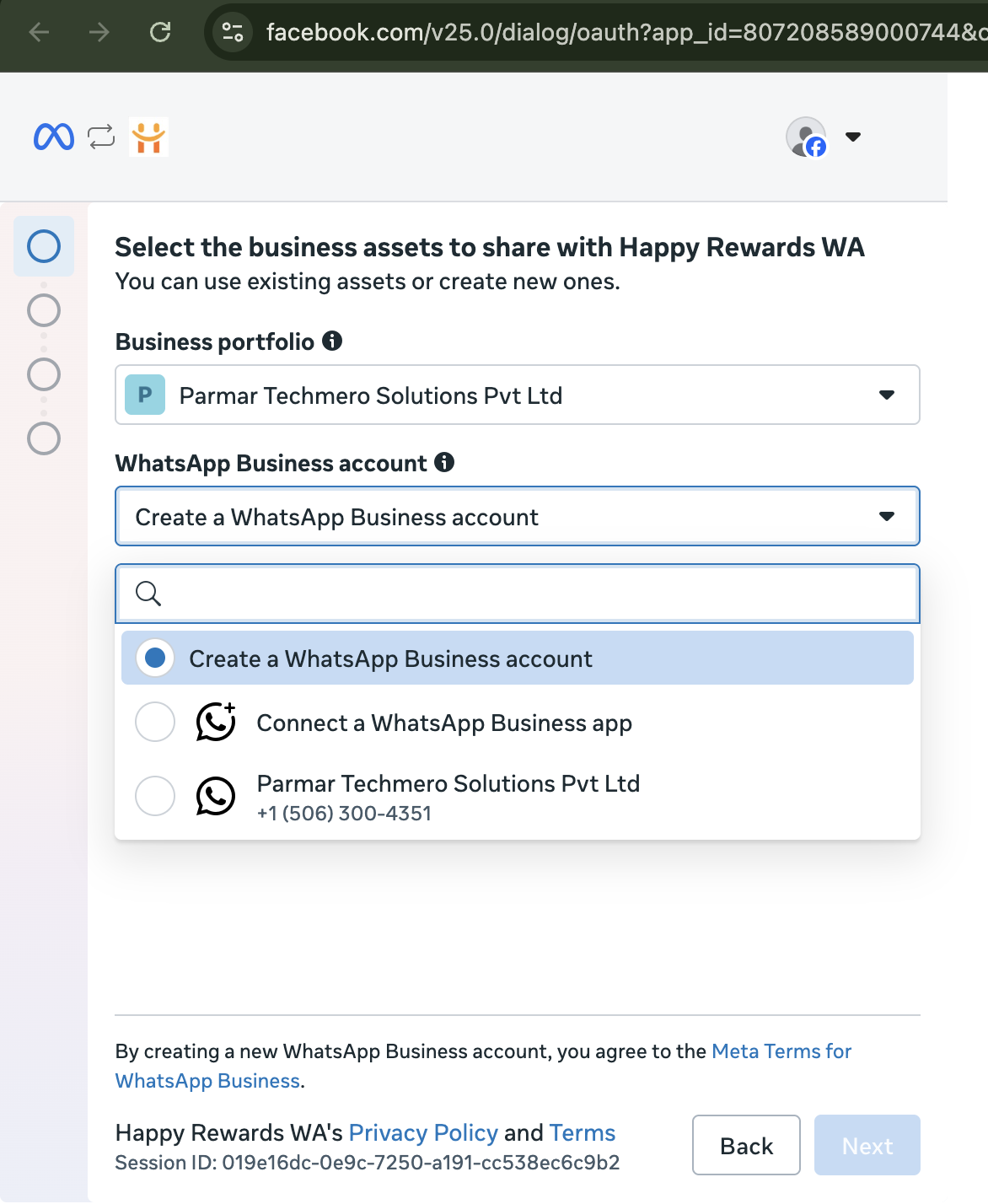
Create WhatsApp Business Profile
In the WhatsApp Business Account selection screen, choose the option to **Create a WhatsApp Business Account** to establish a fresh profile.
Catalog Setup Selection
Choose an existing Facebook Commerce Catalog to sync with your products, or select to create a new catalog directly.
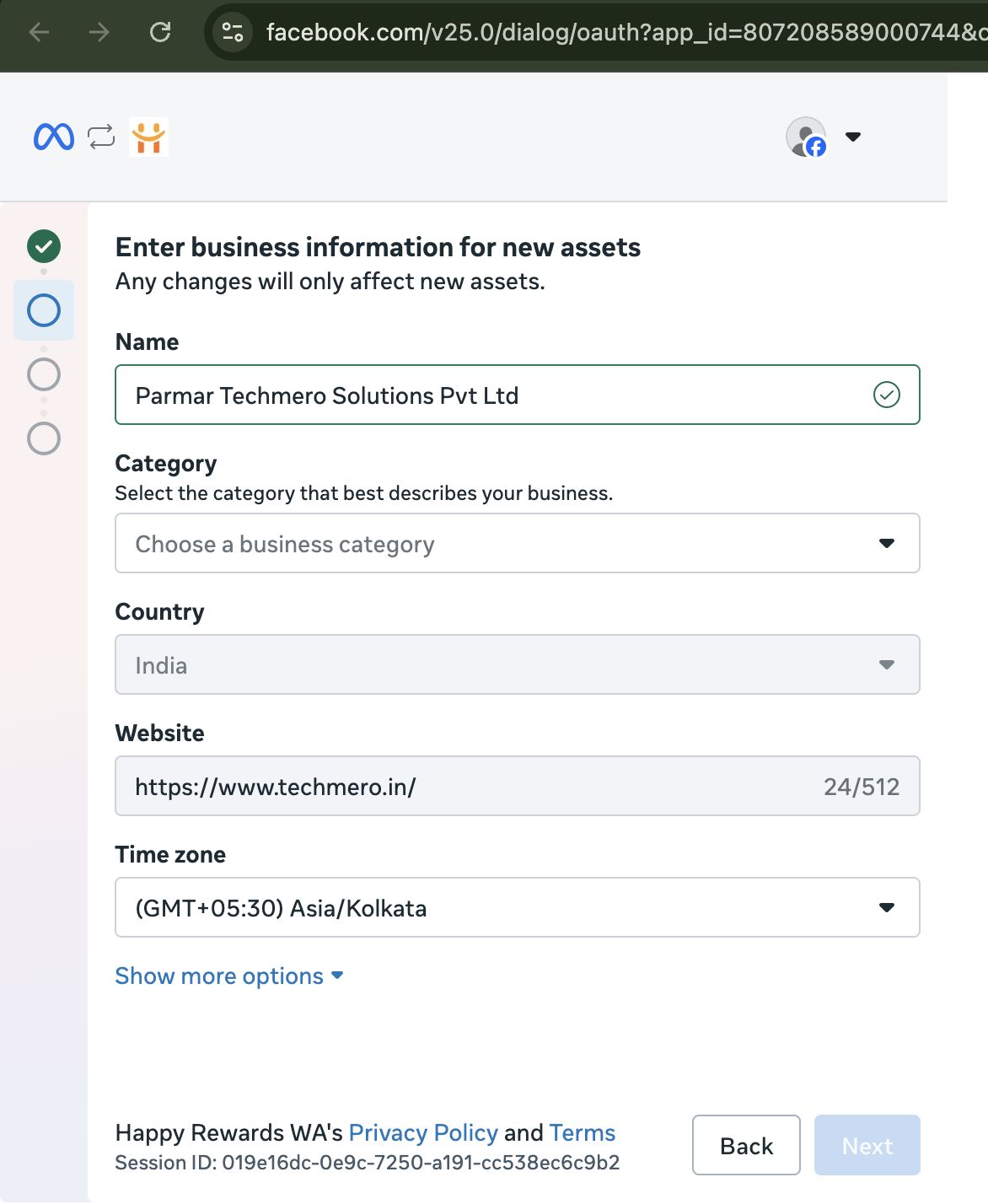
Input New Business Information
Enter your newly added brand business details. Fill in your public Business Name, Category, Country, Website, and timezone correctly.
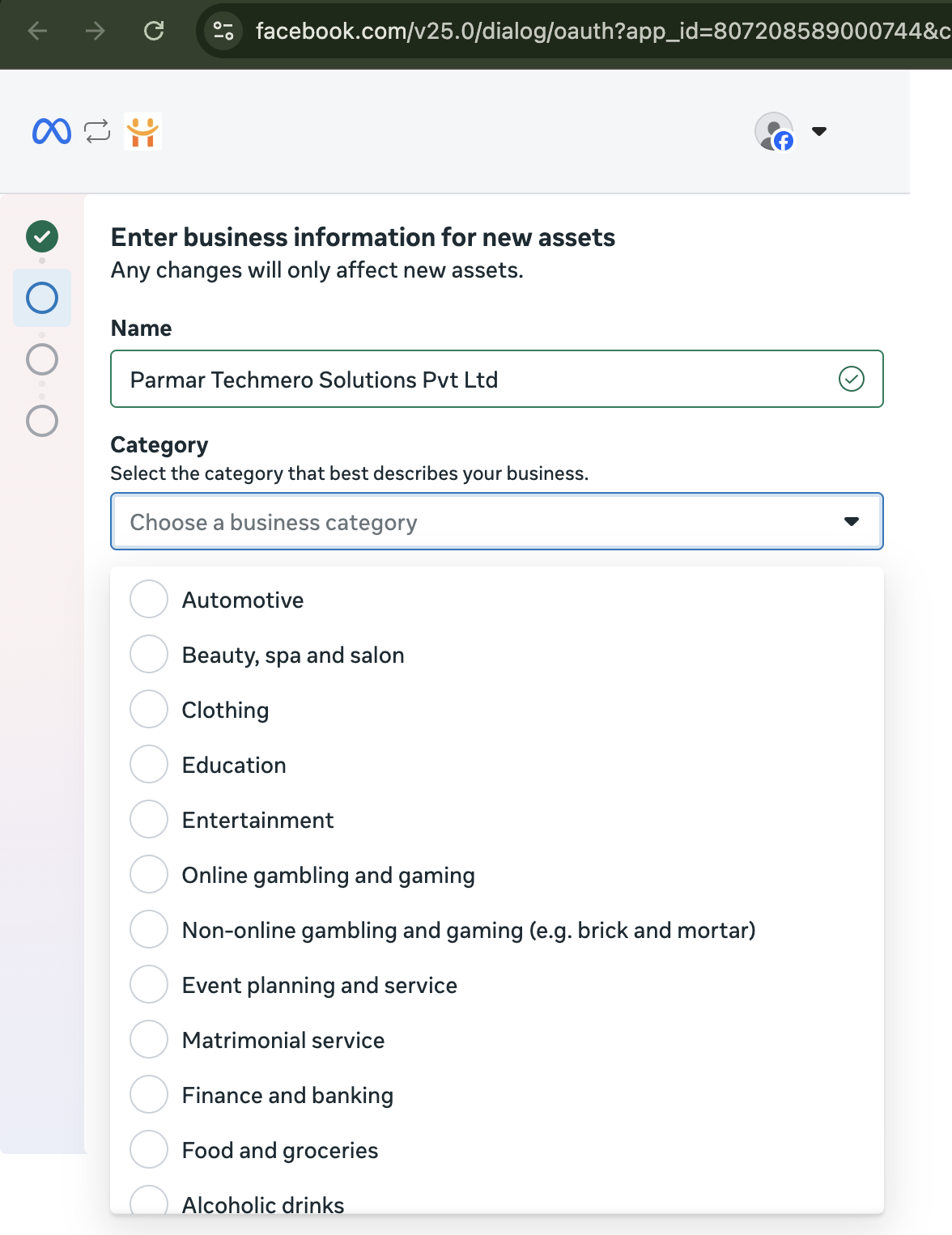
Select Specific Brand Category
Click the category dropdown options to choose the business industry that represents your company most accurately.
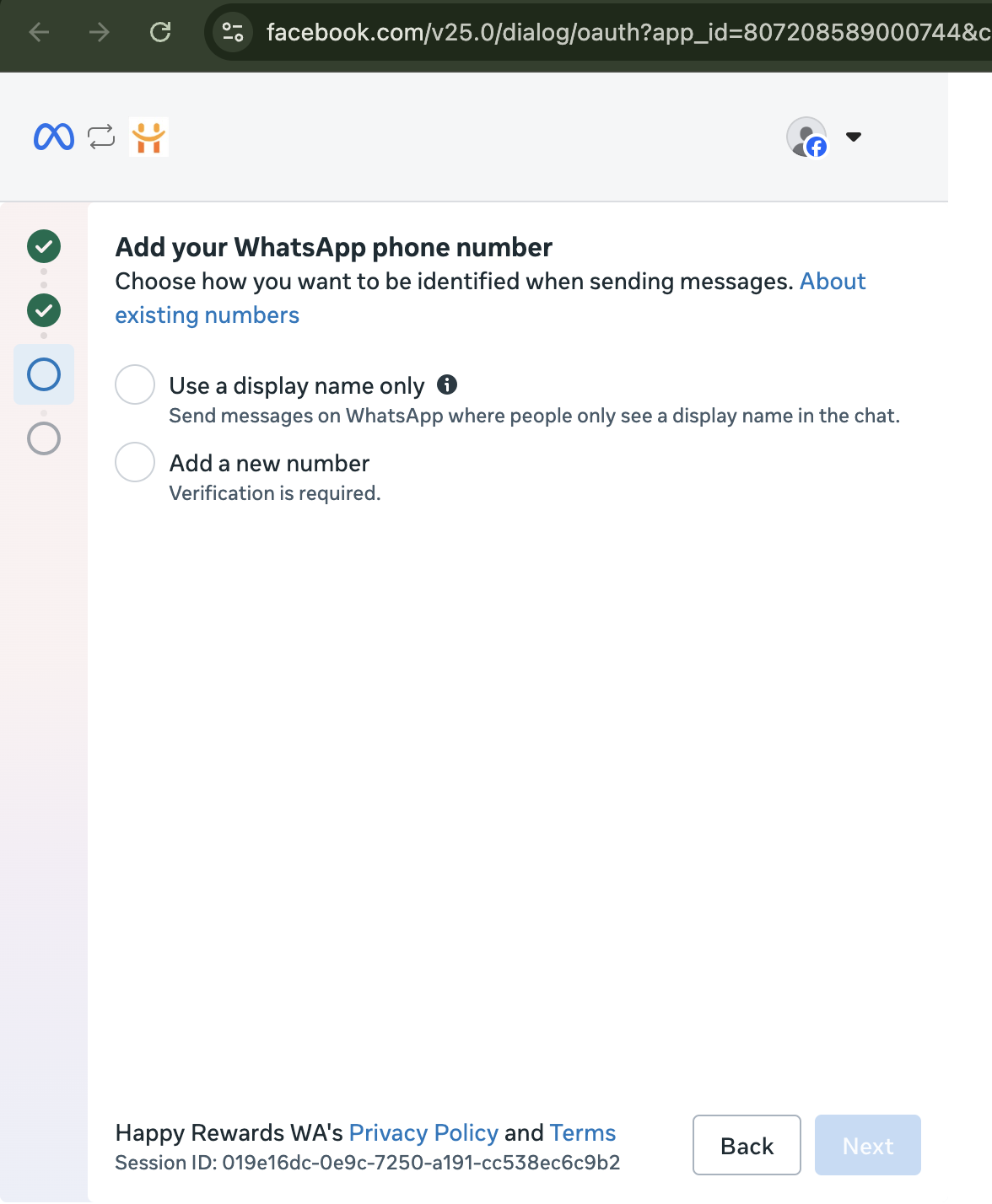
Add WhatsApp Phone Number
Move to the phone registration step. Get ready to add your WhatsApp-exclusive business number.
Define Phone Number Profile
Enter the fresh phone number you want to assign to this WhatsApp business account.
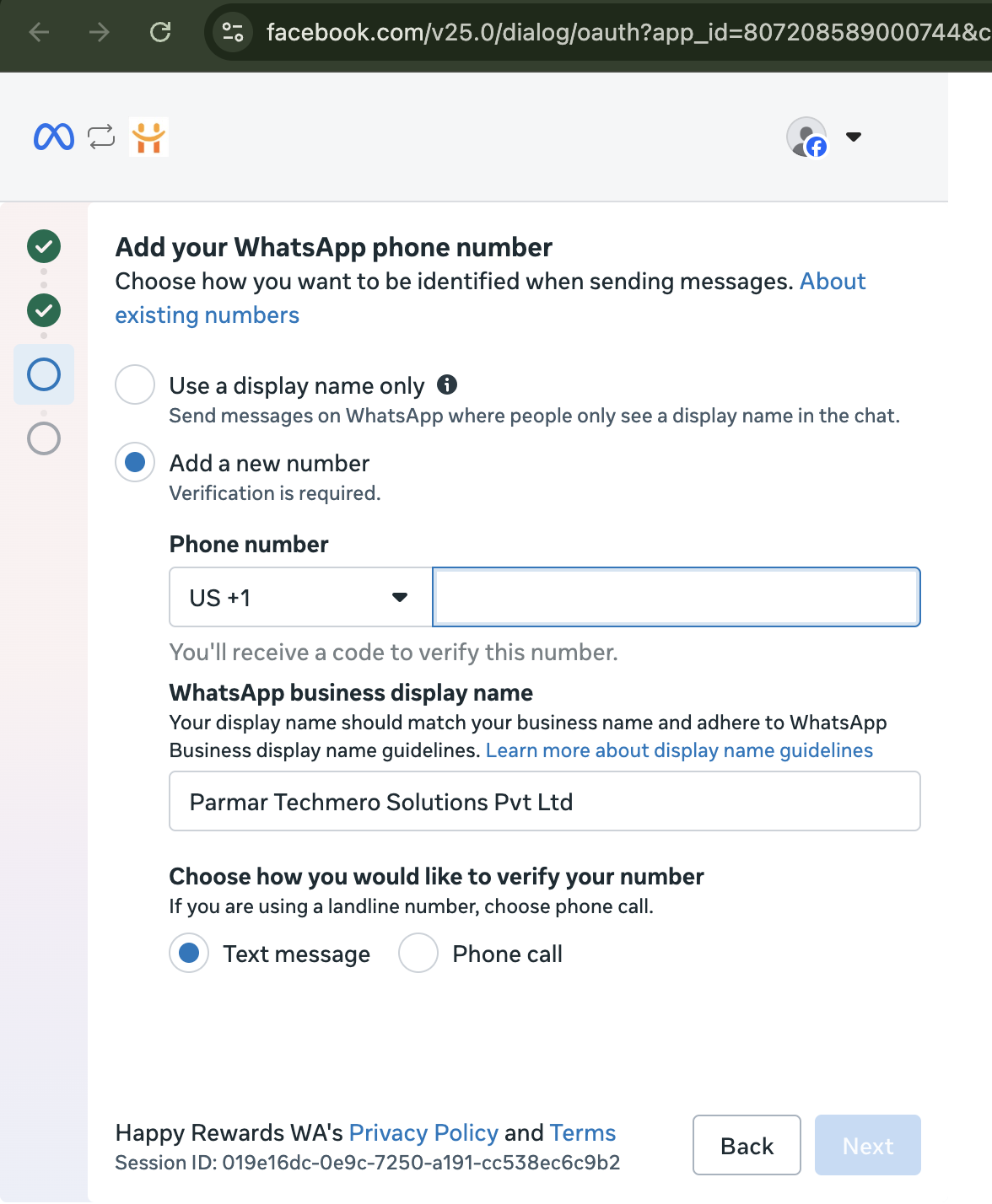
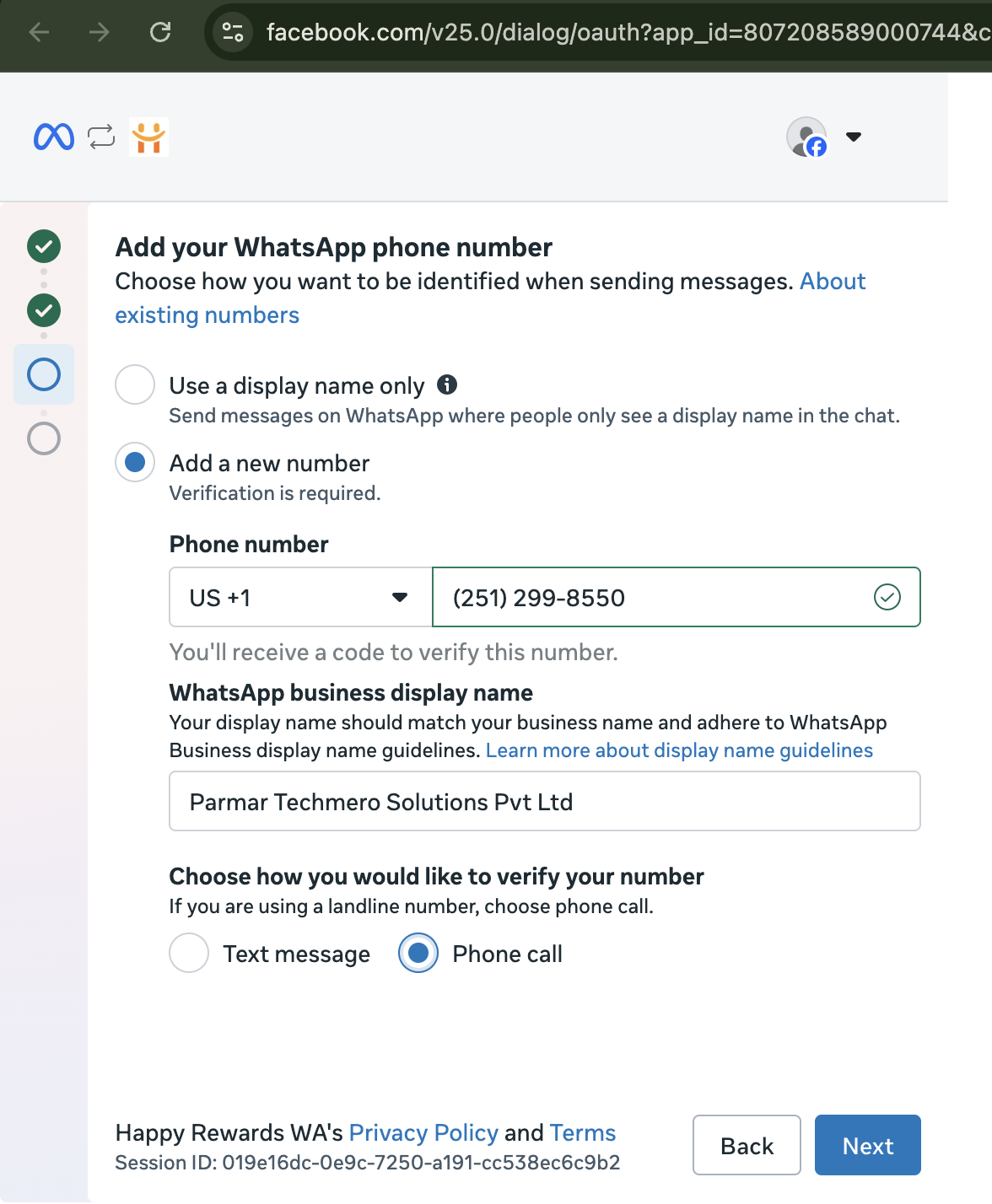
Specify Profile Display Name and Verify Method
Enter your public profile Display Name, select your active country code, and choose whether to verify the number via **Text Message** (SMS) or **Phone Call**.
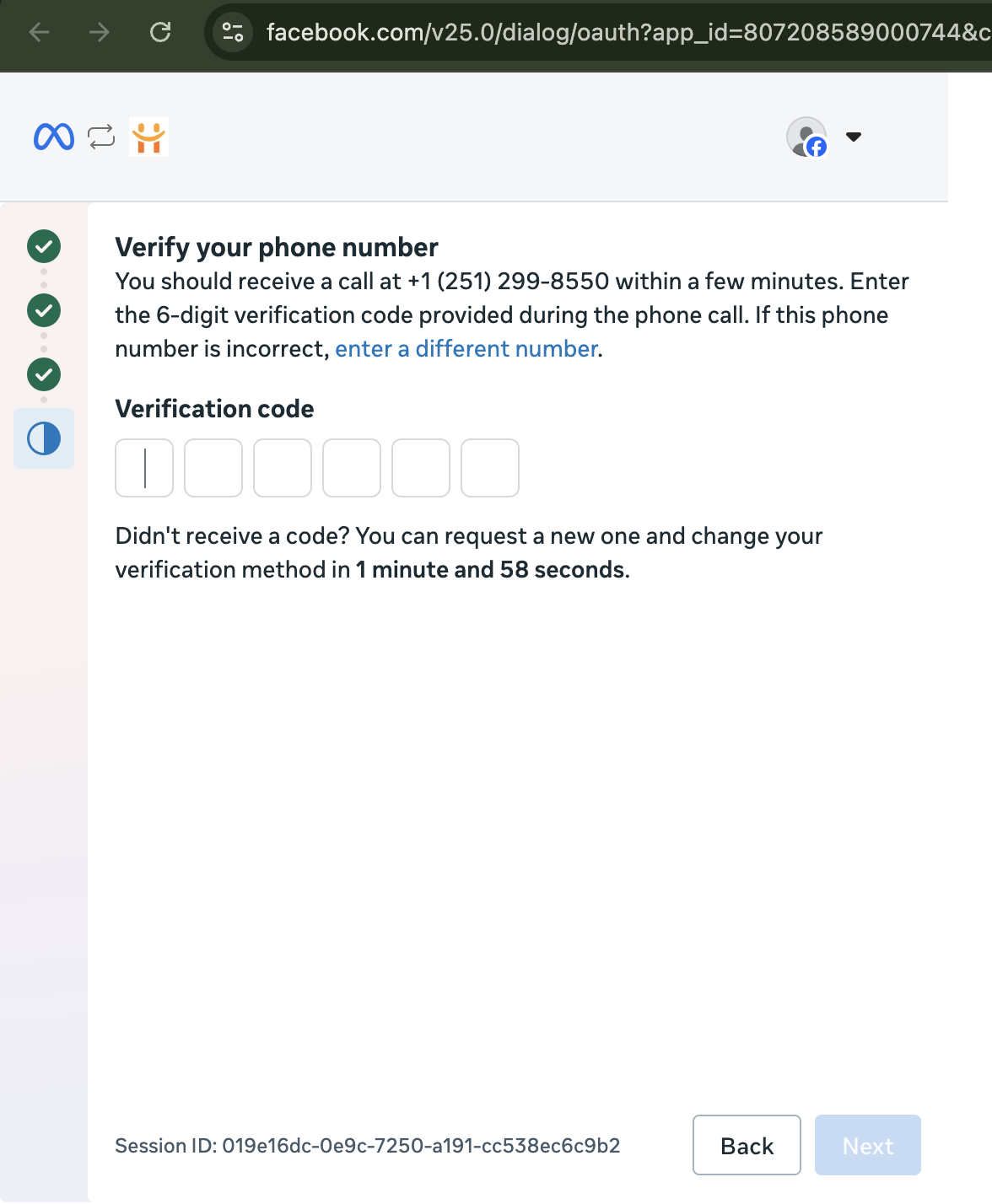
OTP Screen Verification
Meta will trigger an automated verification request. Observe the 6-digit verification code field that displays on your screen.
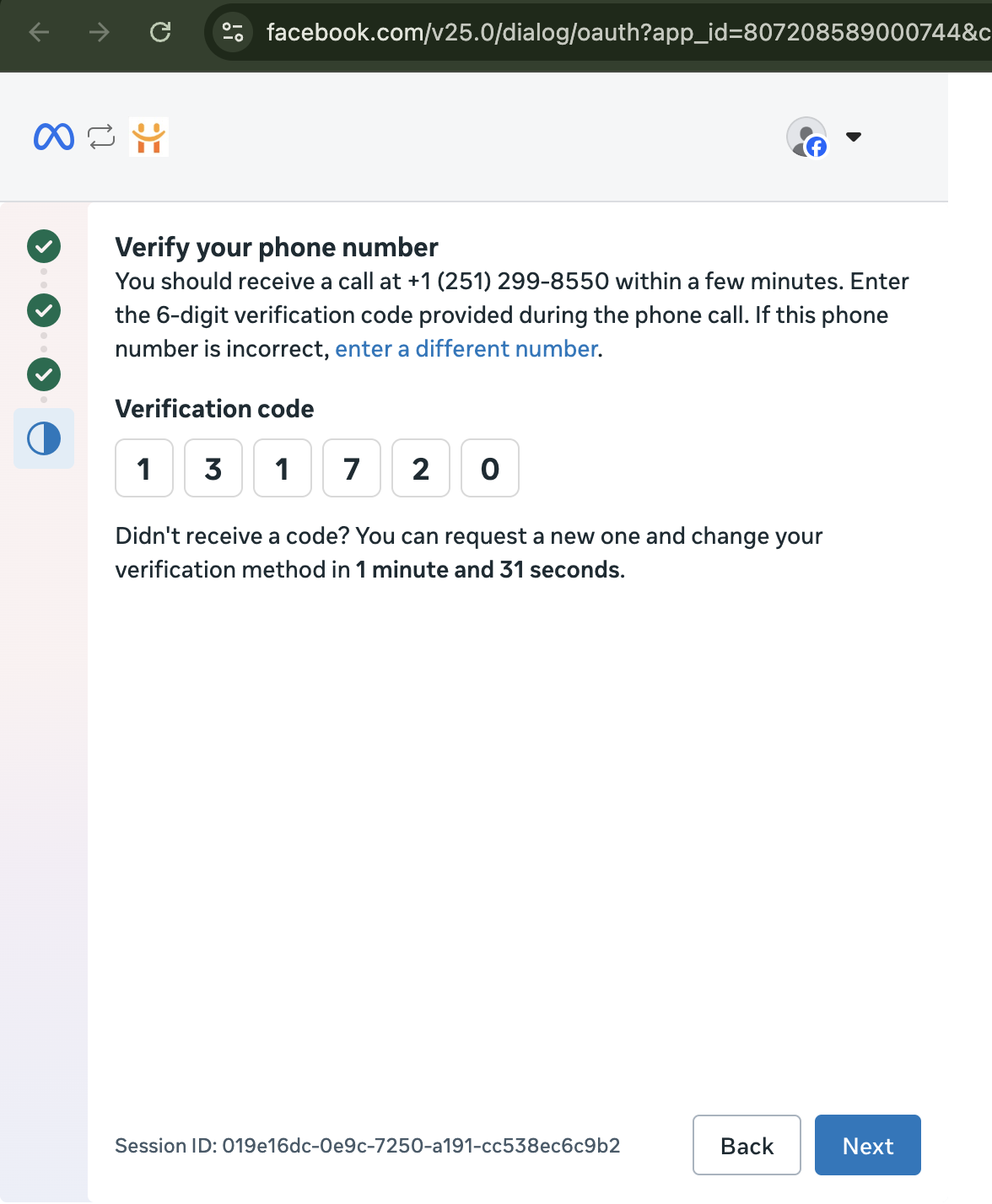
Submit Your Verification PIN
Enter the 6-digit OTP code received on your phone, then click **Next** to finalize the verification flow.
Review Brand Details
Review your public WhatsApp Business details, parameters, and assigned profile permissions, and proceed to authorize.
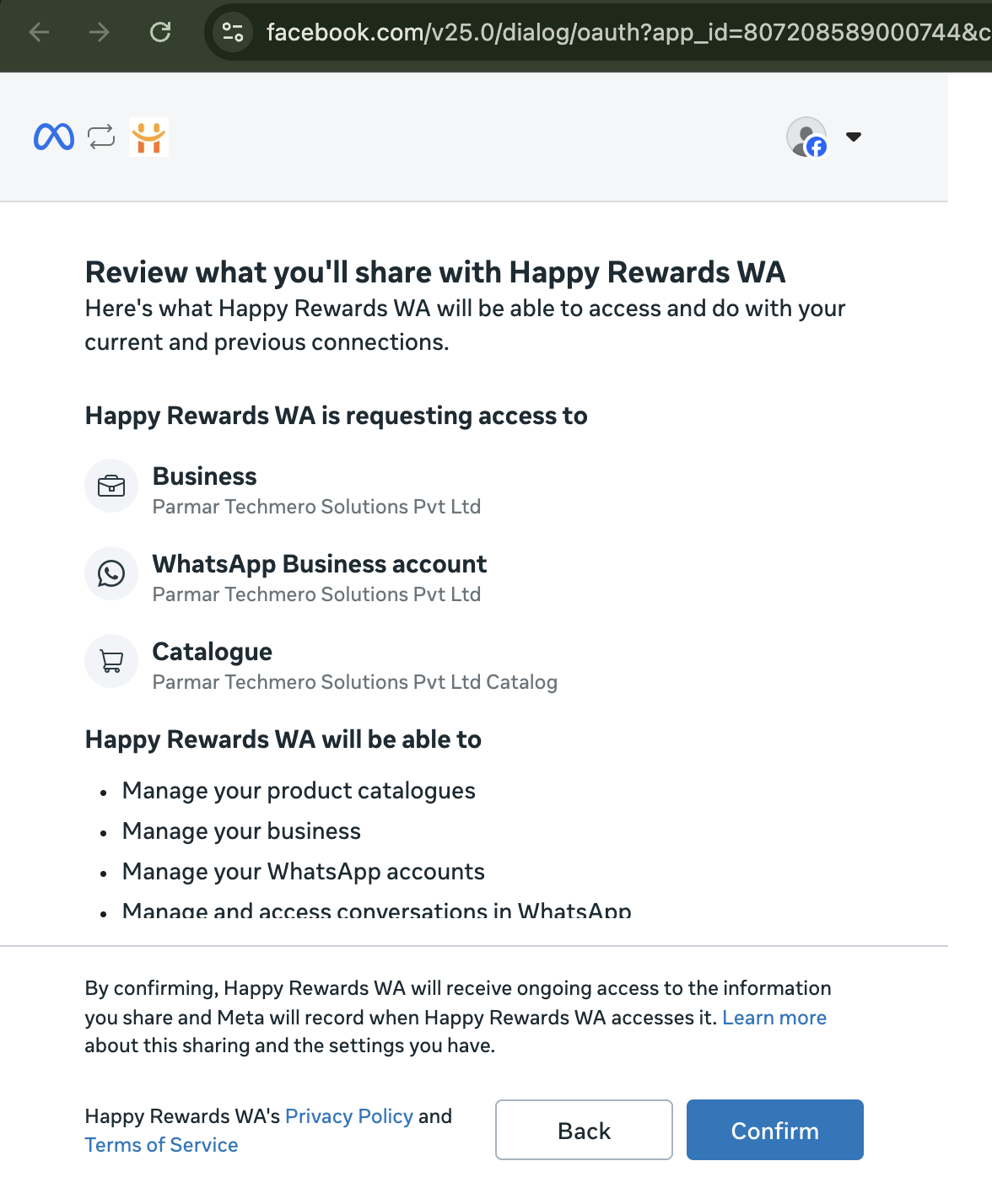
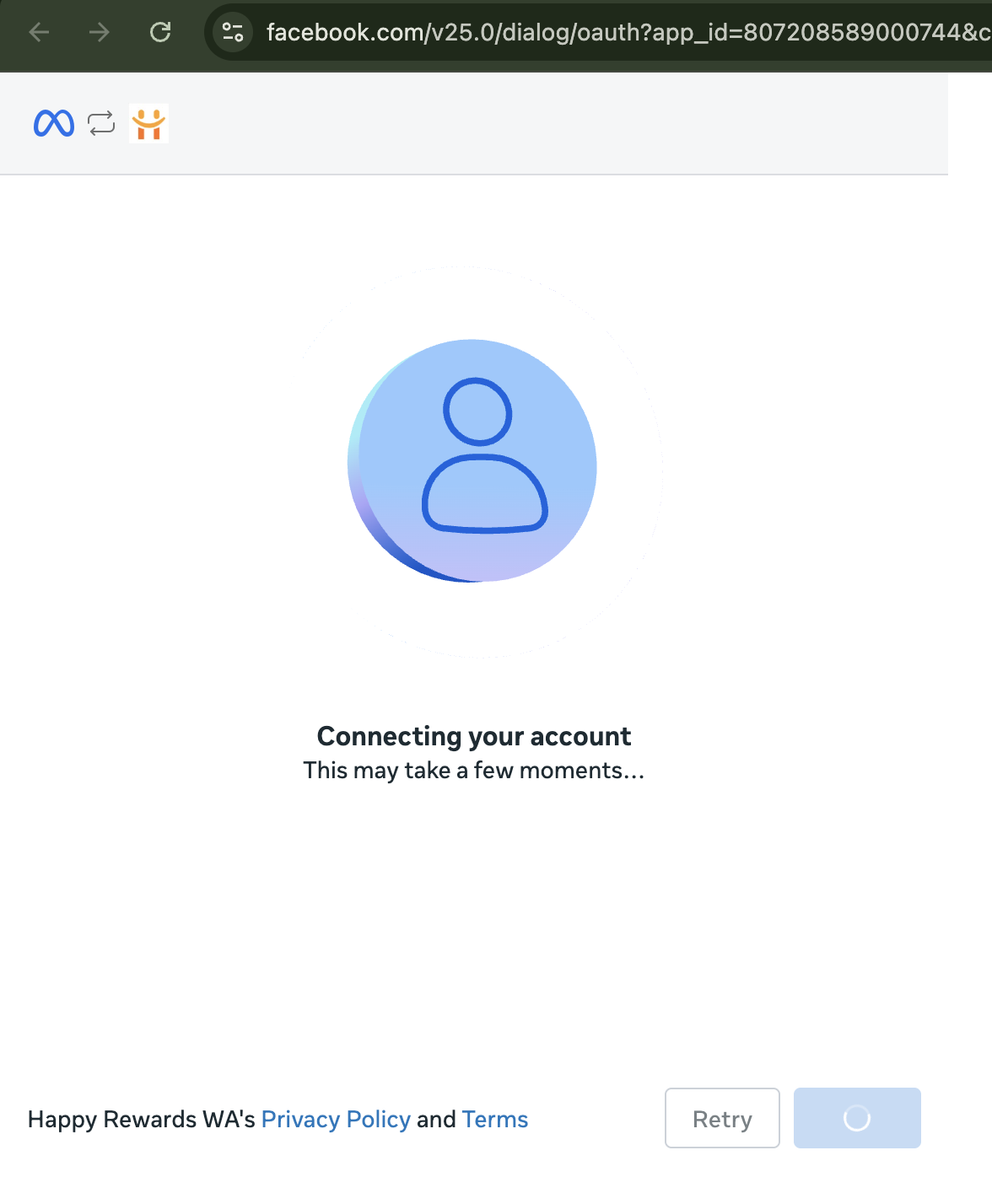
Establish Account Connection Loader
Hold on for a few moments while Meta configures the background webhooks and integrates the fresh number securely with our CRM system.
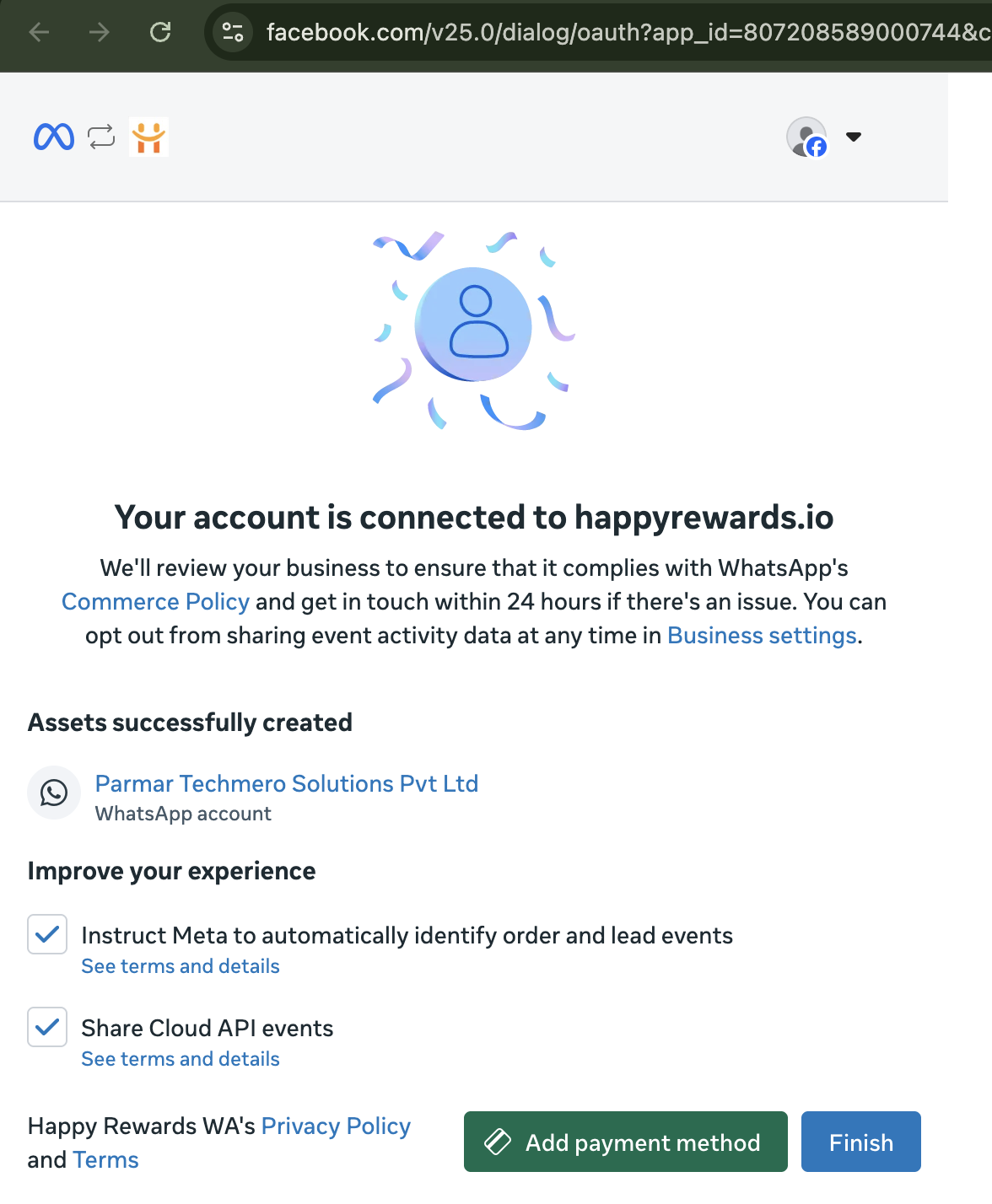
Connection Finalised!
Finally, you'll see a successful connection confirmation with all details listed. Click the **Finish** button inside the pop-up. You're all set! Wait on our system settings page for the live workspace sync, select your newly registered active number, and begin managing WhatsApp at scale.