Coexistence (Business App Link)
Meta allows you to securely link your active mobile phone business number to our dashboard via this coexistence setup, enabling real-time workspace sync.
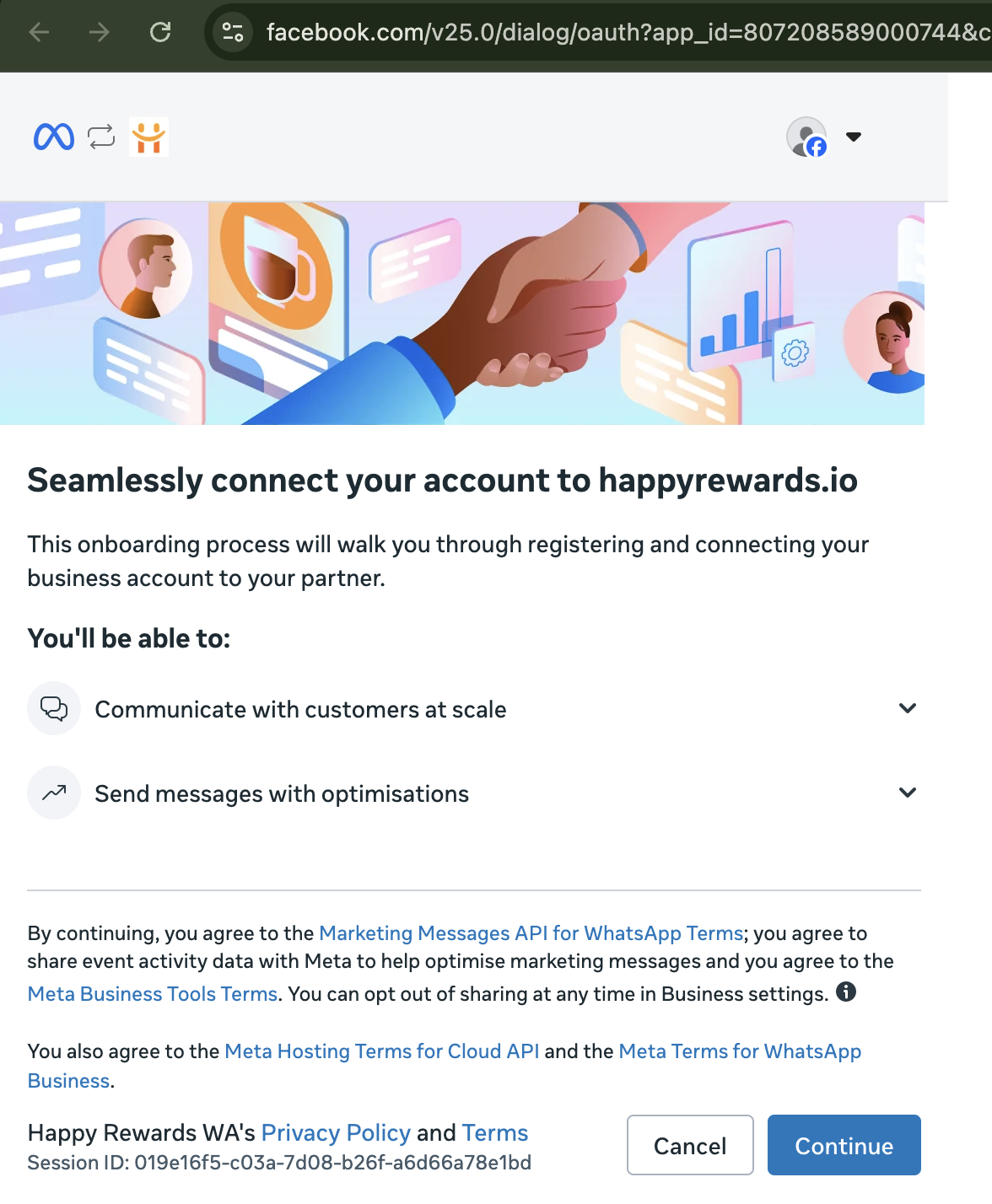
Connect Account to Partner
In the secure Meta pop-up, you will see a welcome screen to connect your active WhatsApp Business Account to happyrewards.io. Review the permissions and click **Continue**.
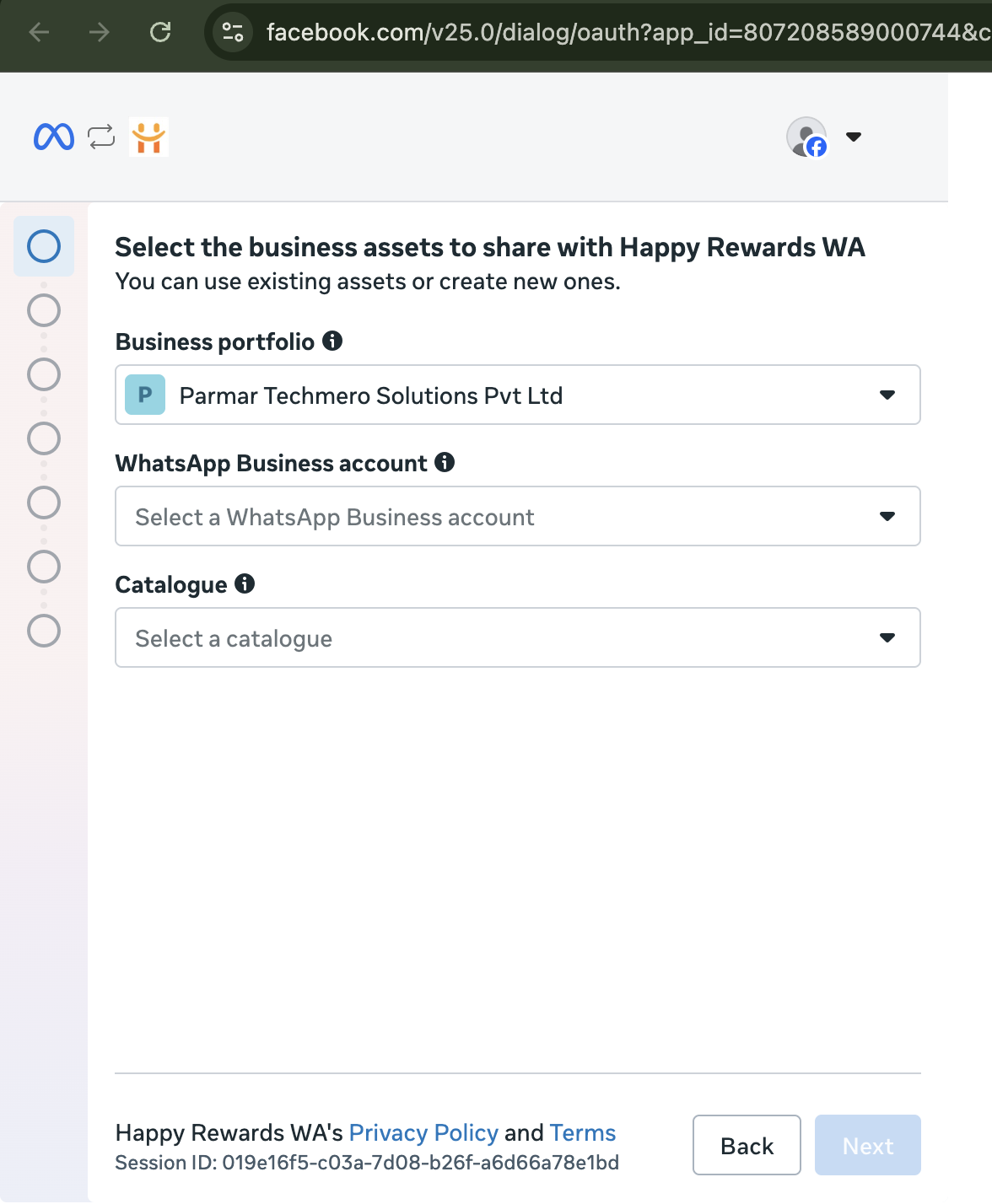
Select Business Assets
Select the correct Meta Business assets (Business Portfolio) that you want to share with Happy Rewards WA.
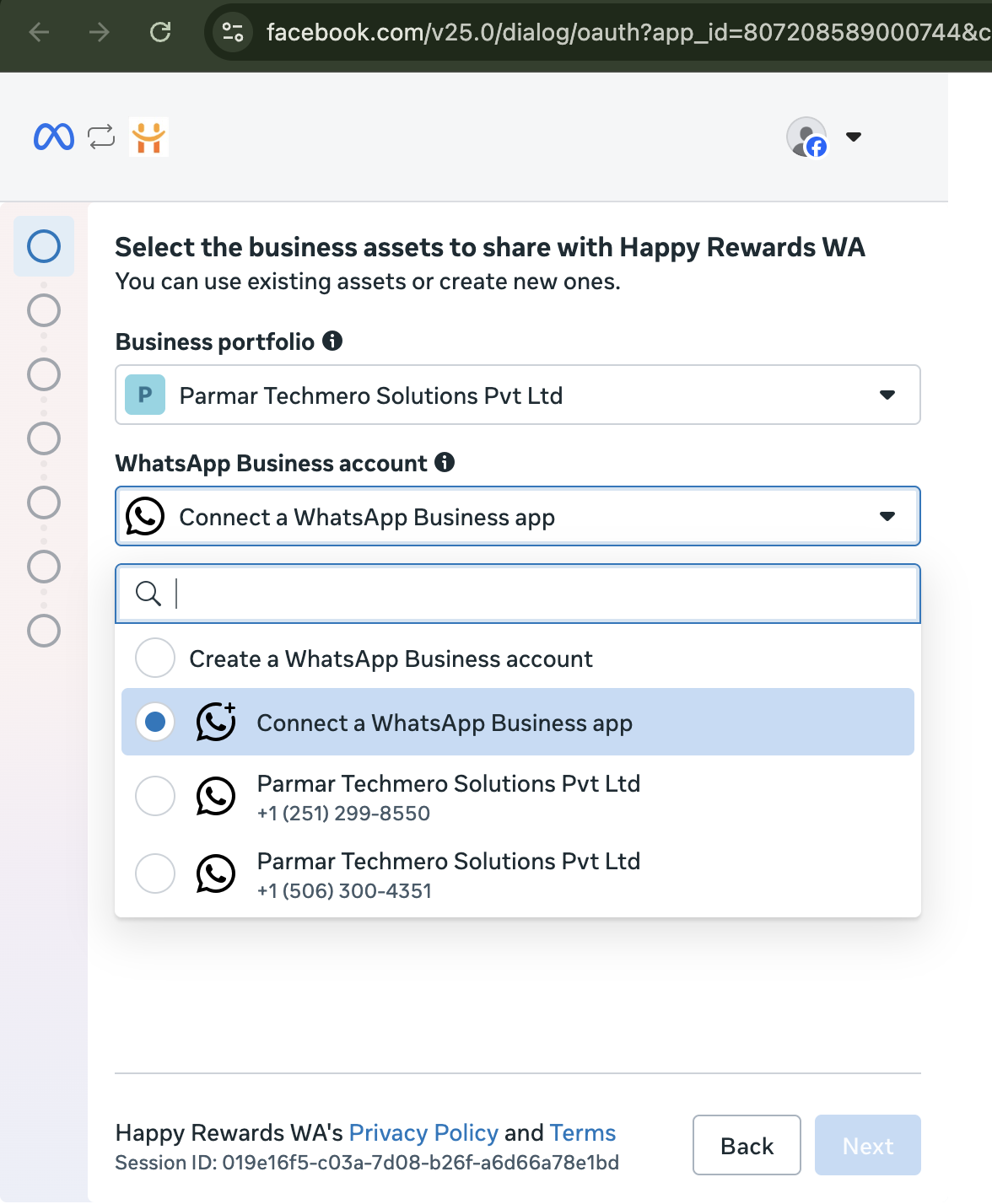
WABA Connection Selection
Navigate to the WABA selection. Click the option to **connect a WhatsApp Business App for coexistence** to link your active mobile phone setup.
Catalog Association
Select or specify the catalog asset you wish to link with this WhatsApp integration.
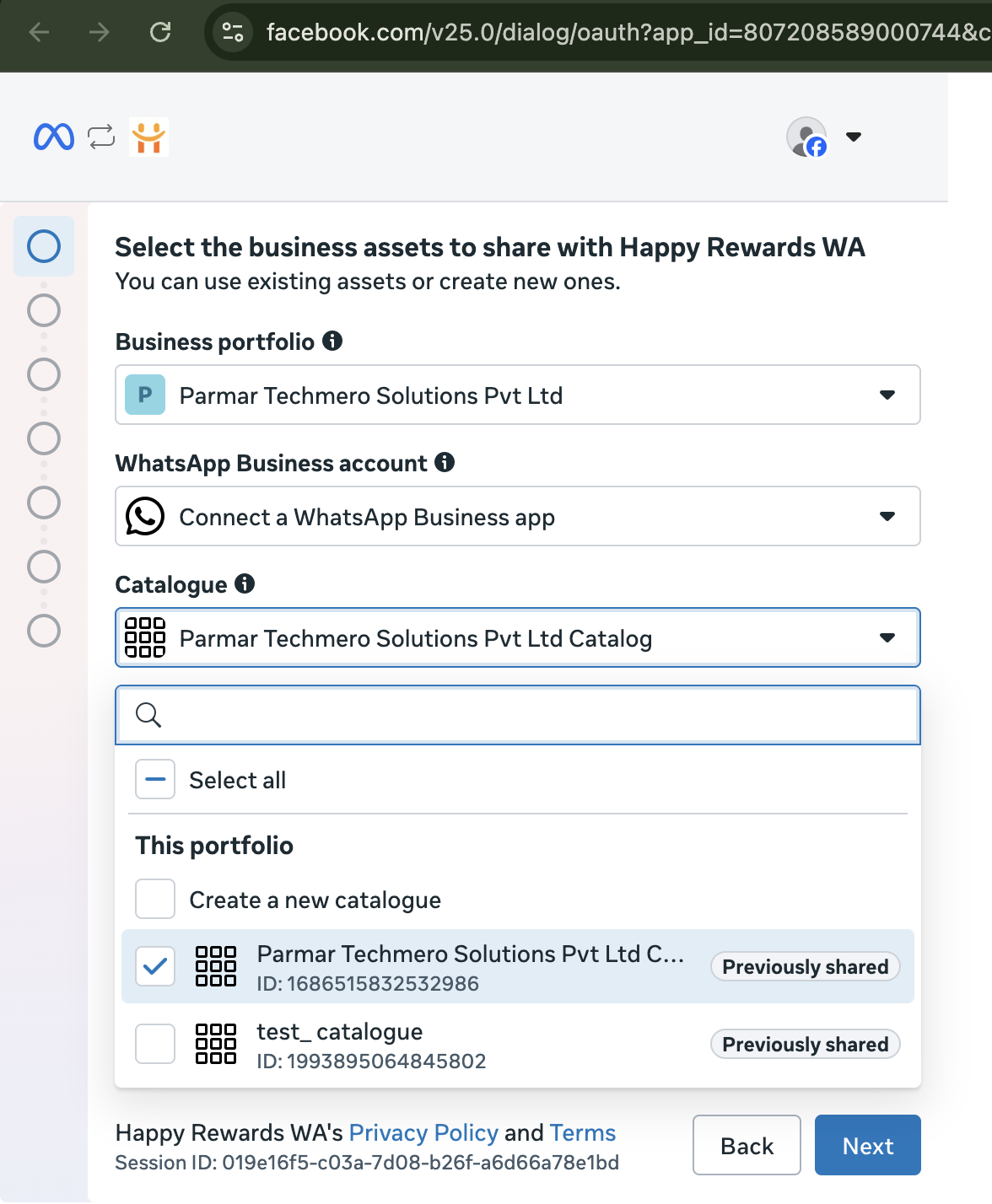
Add Number With Country Dropdown
Enter the business phone number that is currently active inside your mobile WhatsApp Business app. Use the dropdown to select your correct country code.
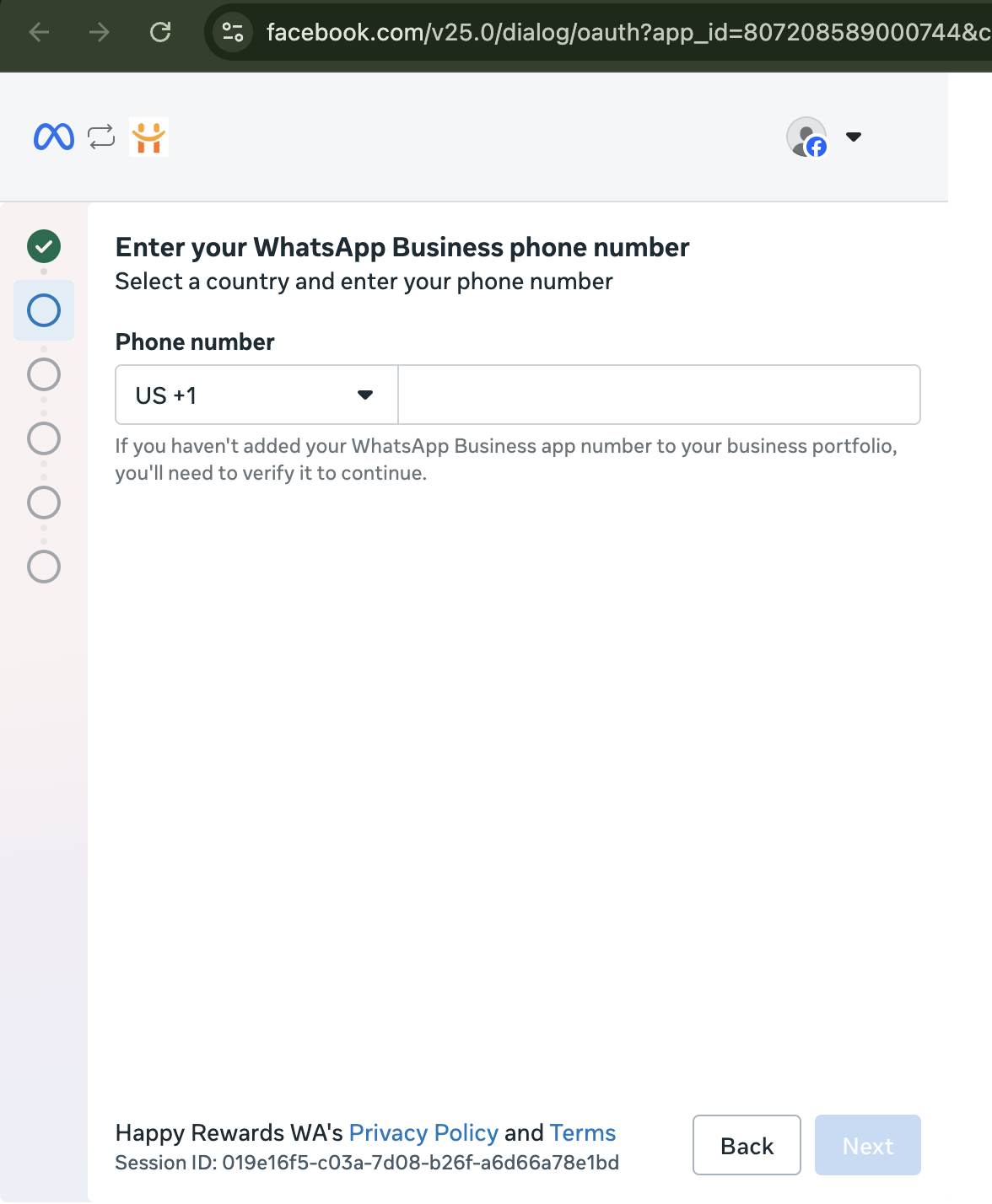
Confirm Inputted Number
Verify that the number you entered is correct, then click **Next** to proceed to the connectivity steps.
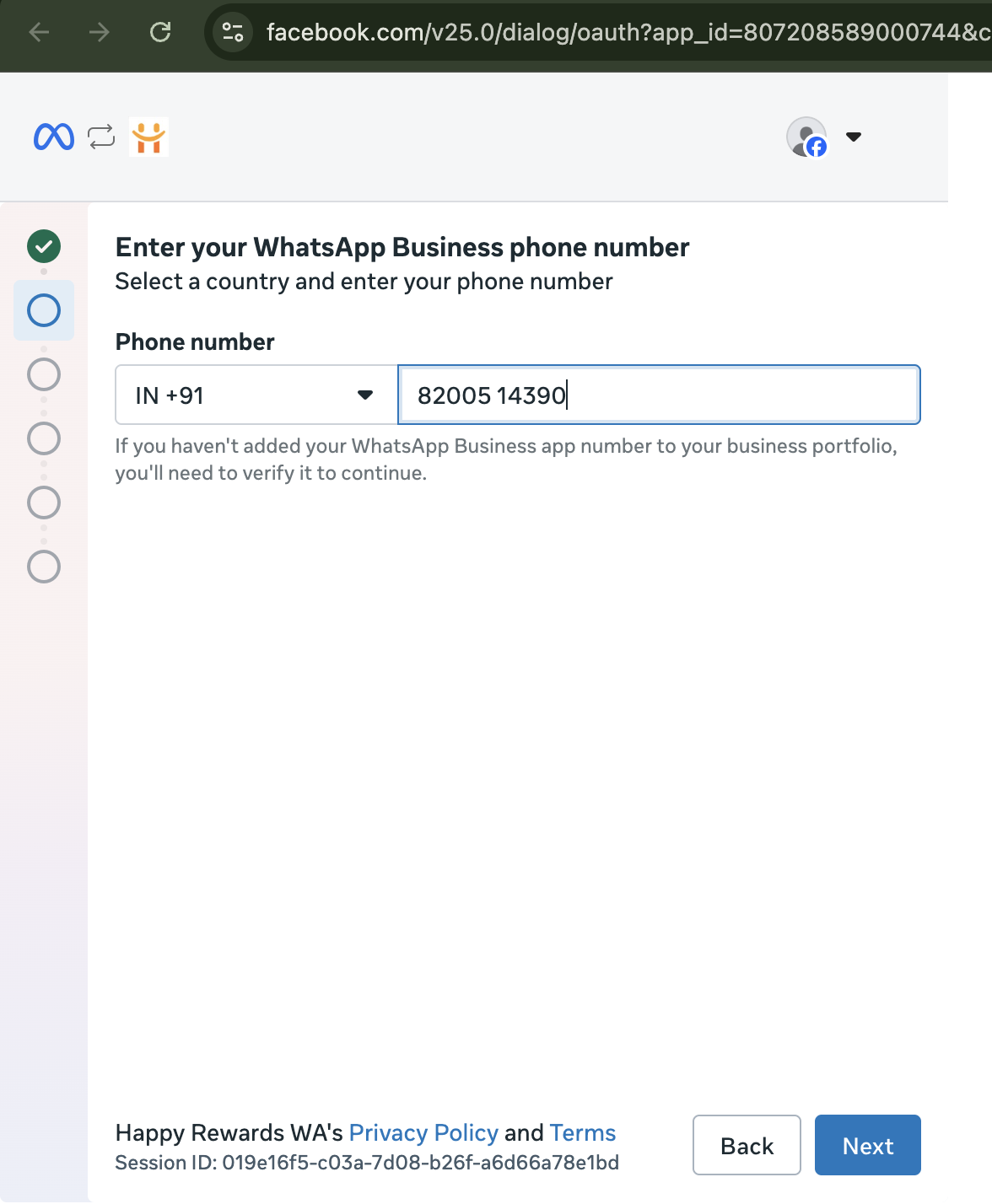
Accept Coexistence Disclaimer
Review the disclaimer regarding connecting your existing WhatsApp Business app. Confirm you accept the parameters and click **Next**.
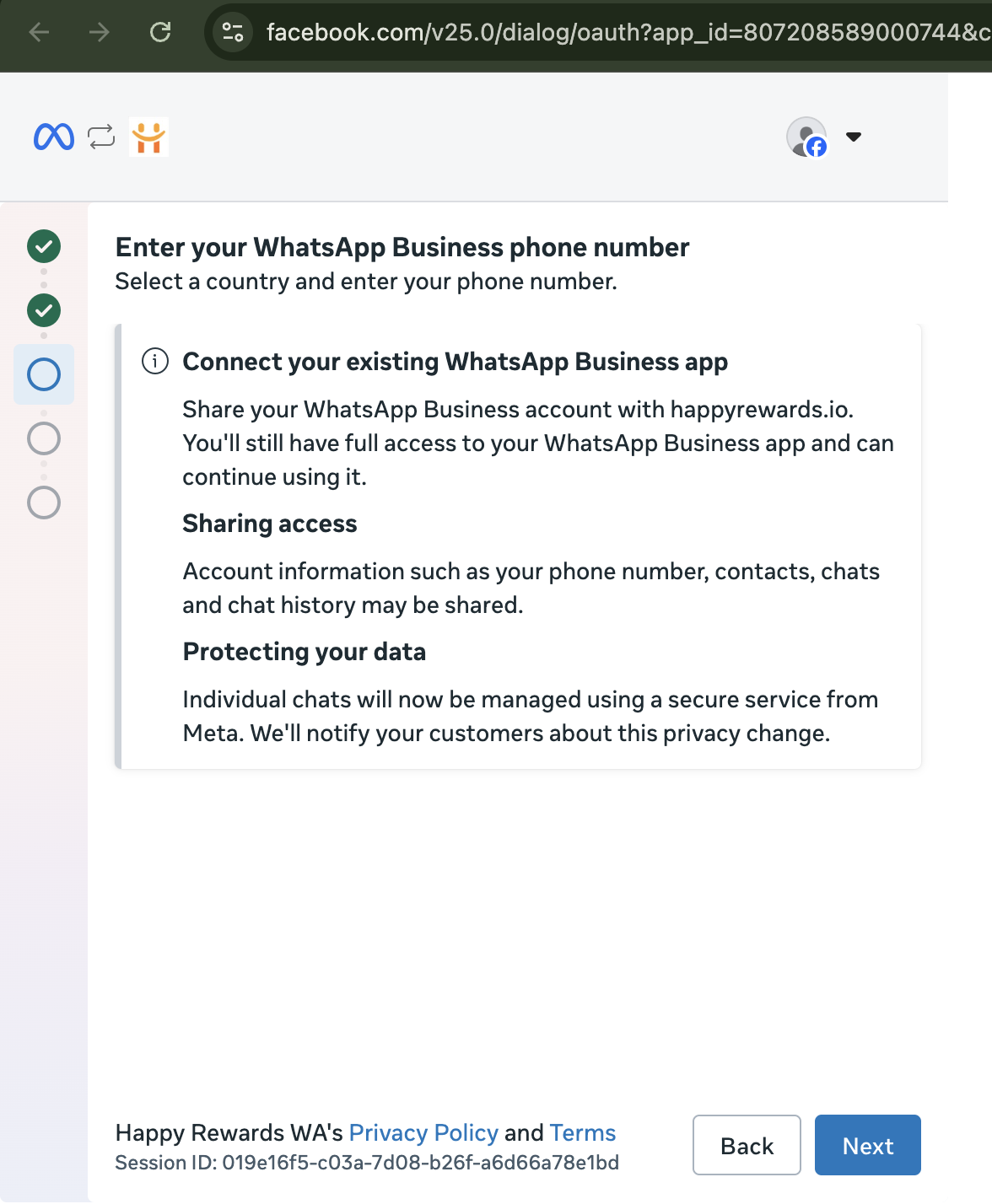
Generate Integration QR Code
You will see a unique QR code generated on the screen. Prepare to use your mobile WhatsApp Business App to scan the QR code and link your phone database.
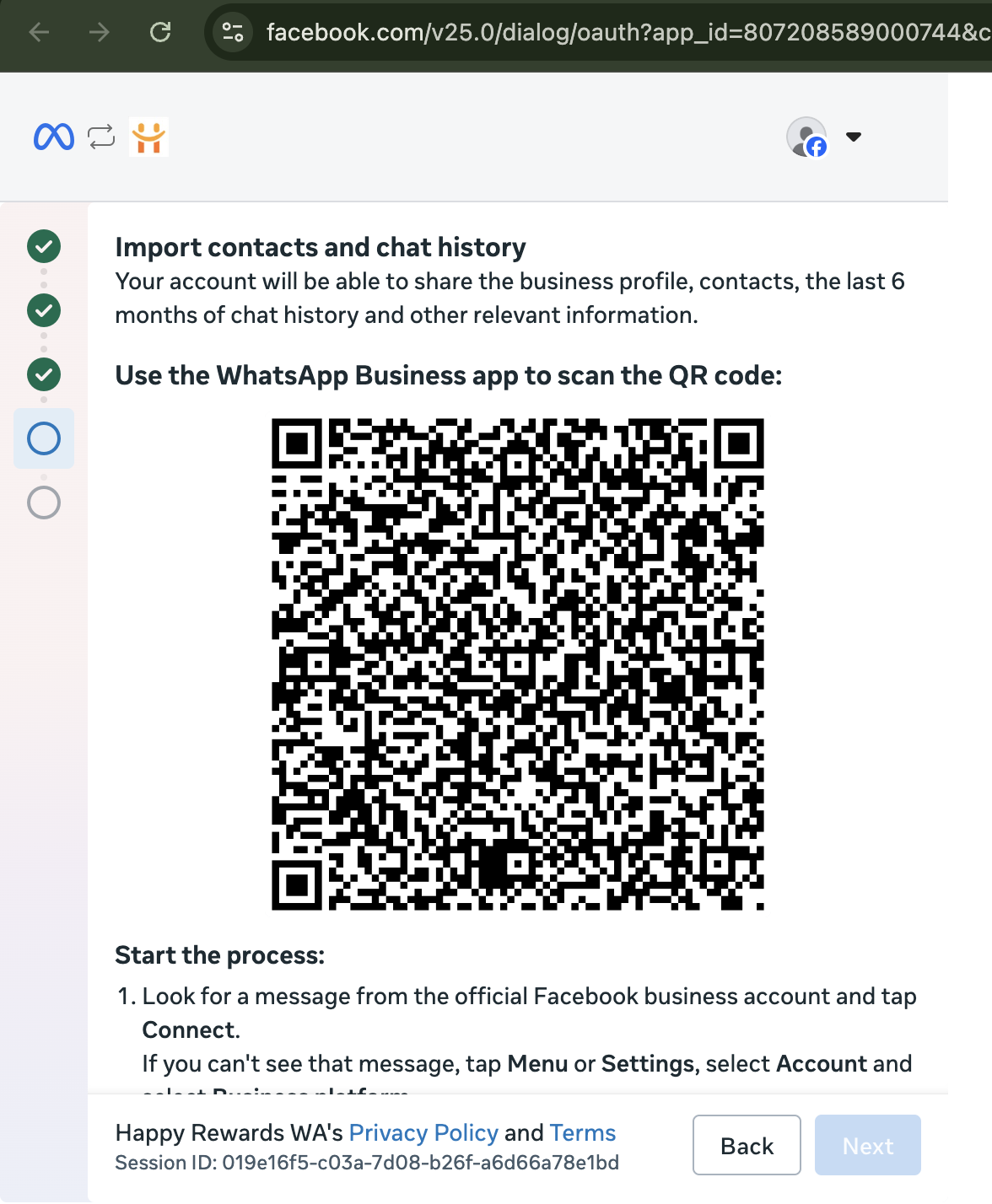
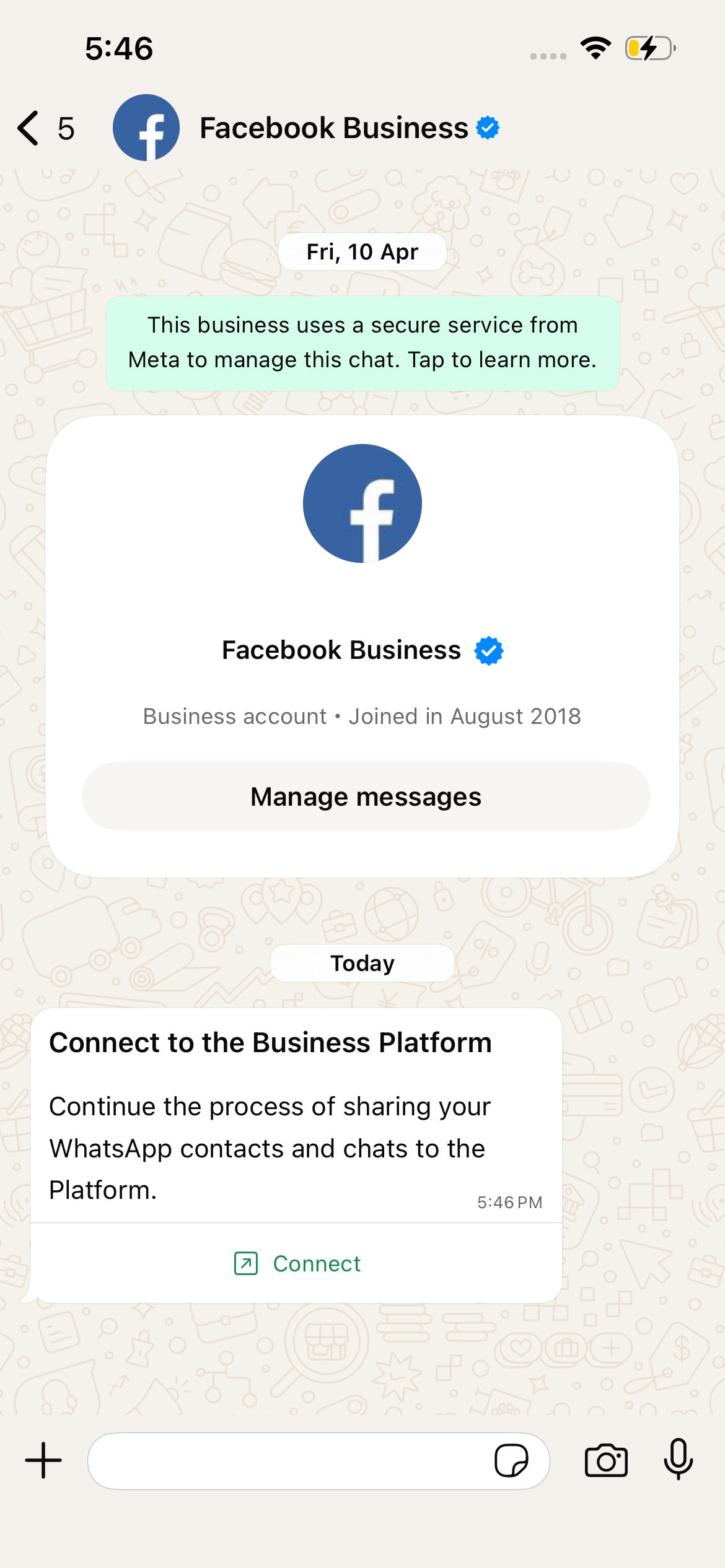
Mobile Notification Trigger
On your mobile phone, you will receive an official system message from Facebook Business Support. Open it and click the **Connect** button.
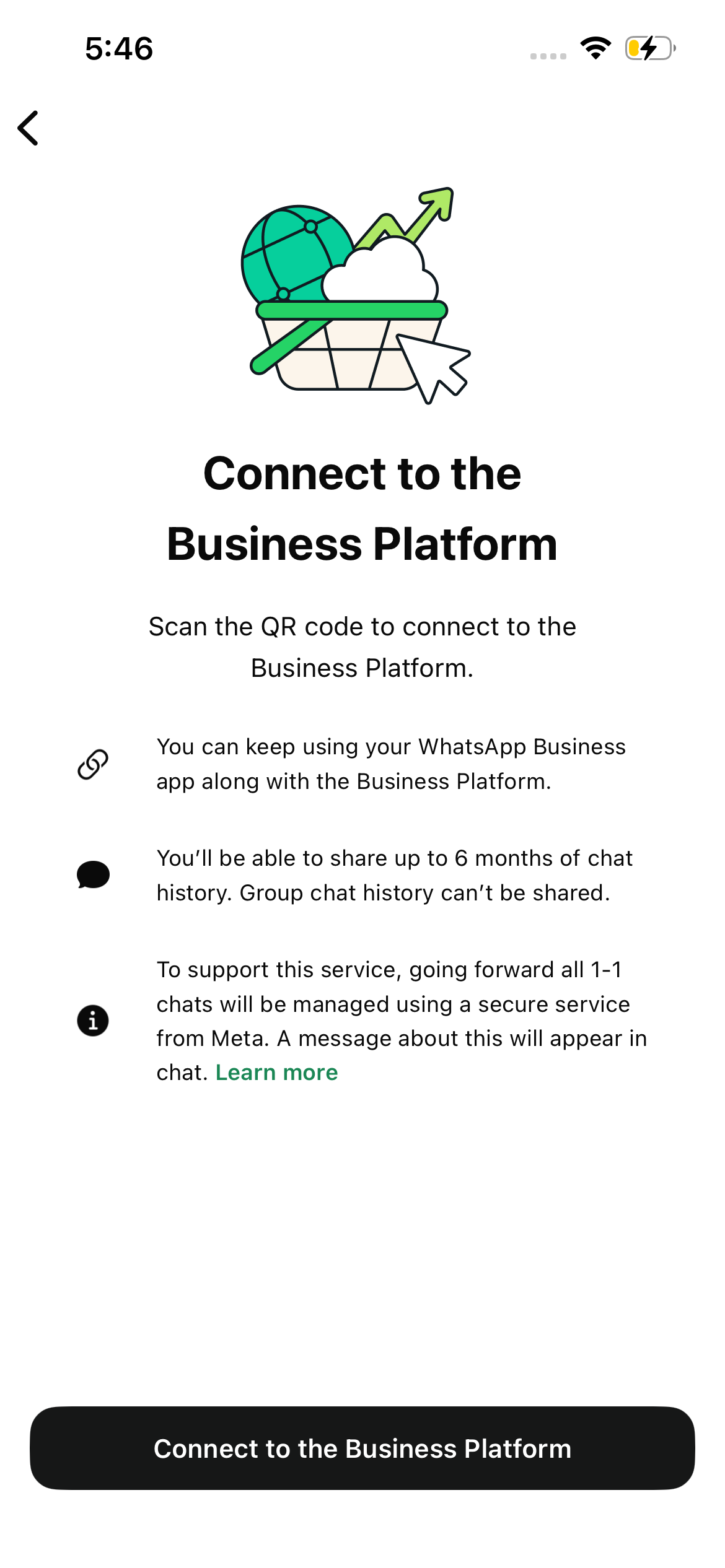
Authorize Mobile Connection
Review the 'Connect business platform' instructions in the mobile app. Read the details about the data to link, and tap **Connect to business platform**.
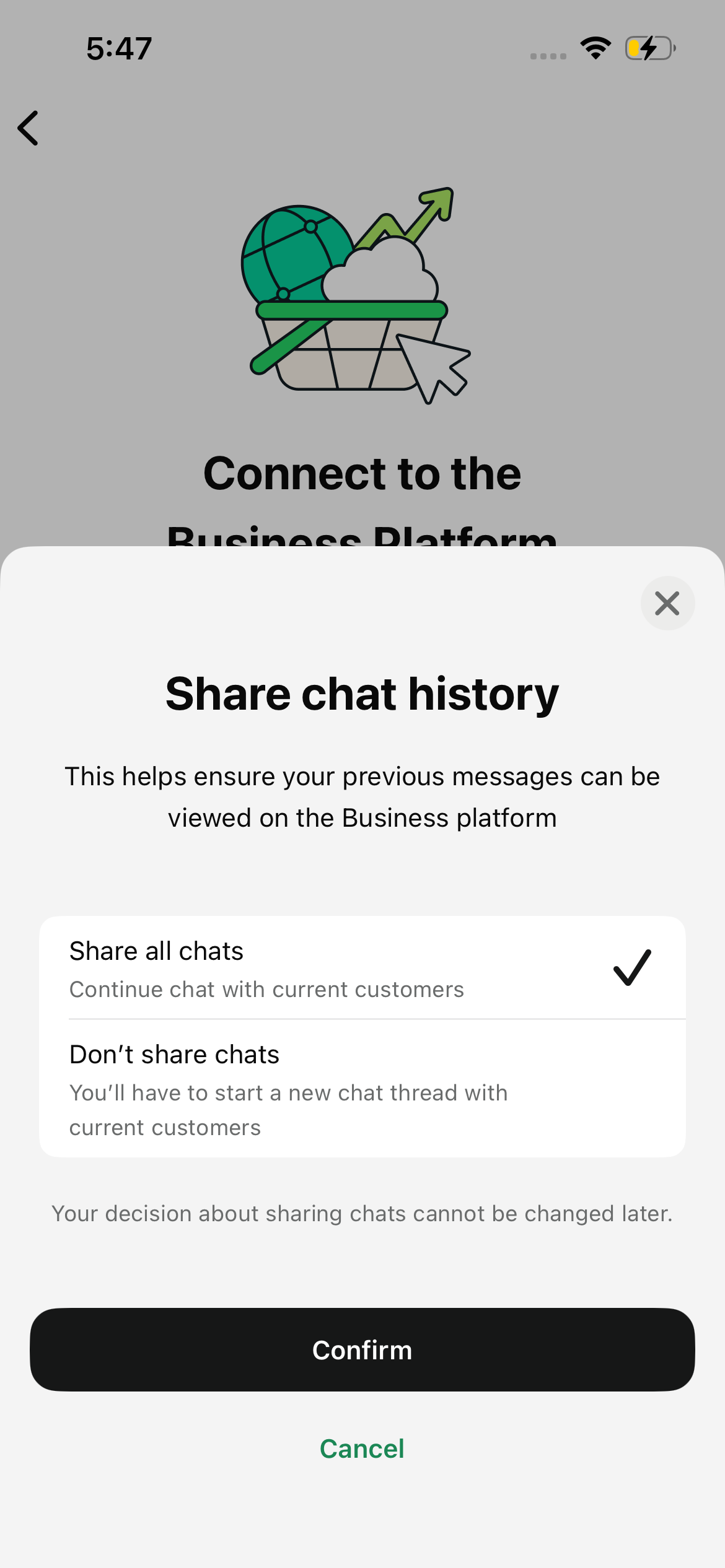
Manage History Sharing
Choose how you want to handle history. You can select either **Share all chats** or **Don't share chat history** from the mobile prompt, then click **Confirm**.
Guide for QR Scan Selection
Follow the prompt instructions in the mobile app to initialize the built-in system scanner for coexistence pairing.
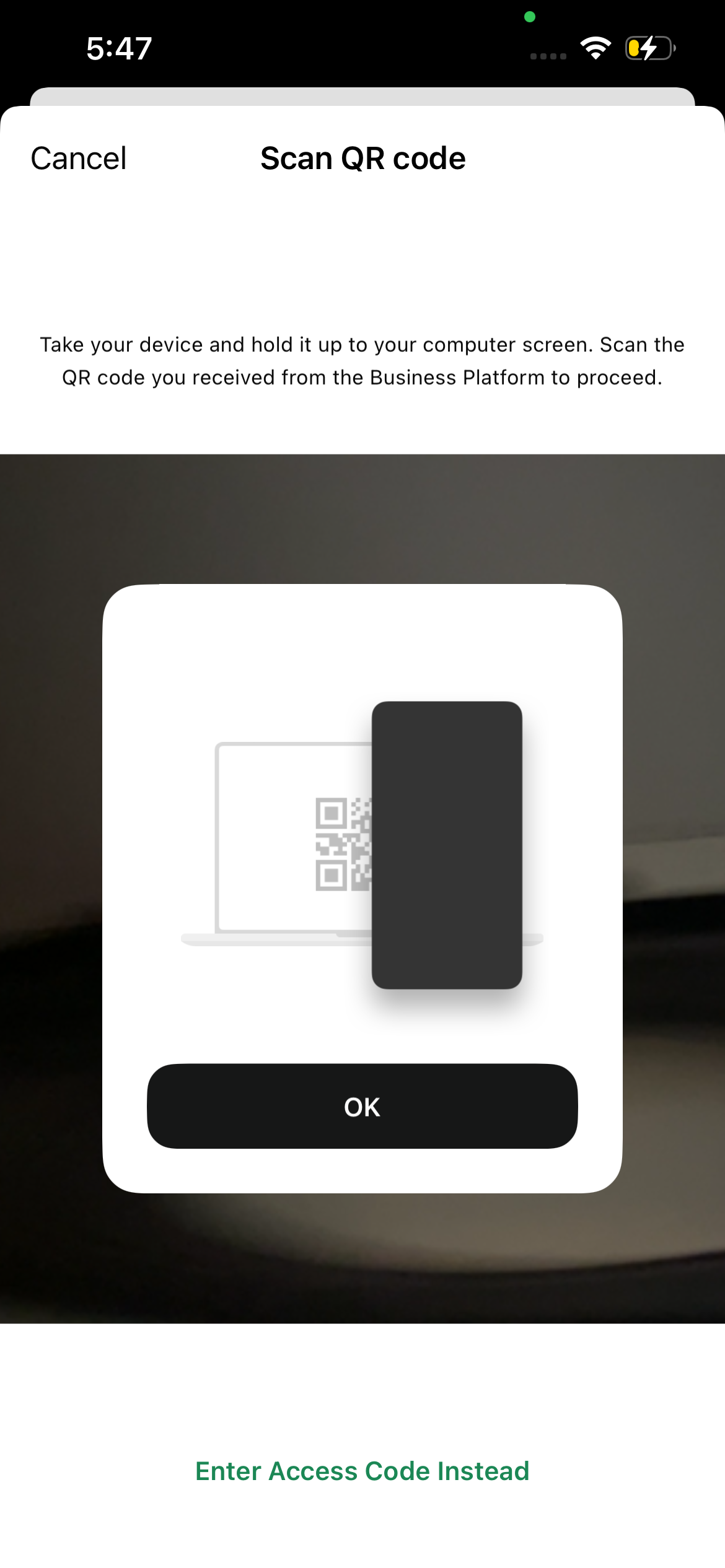
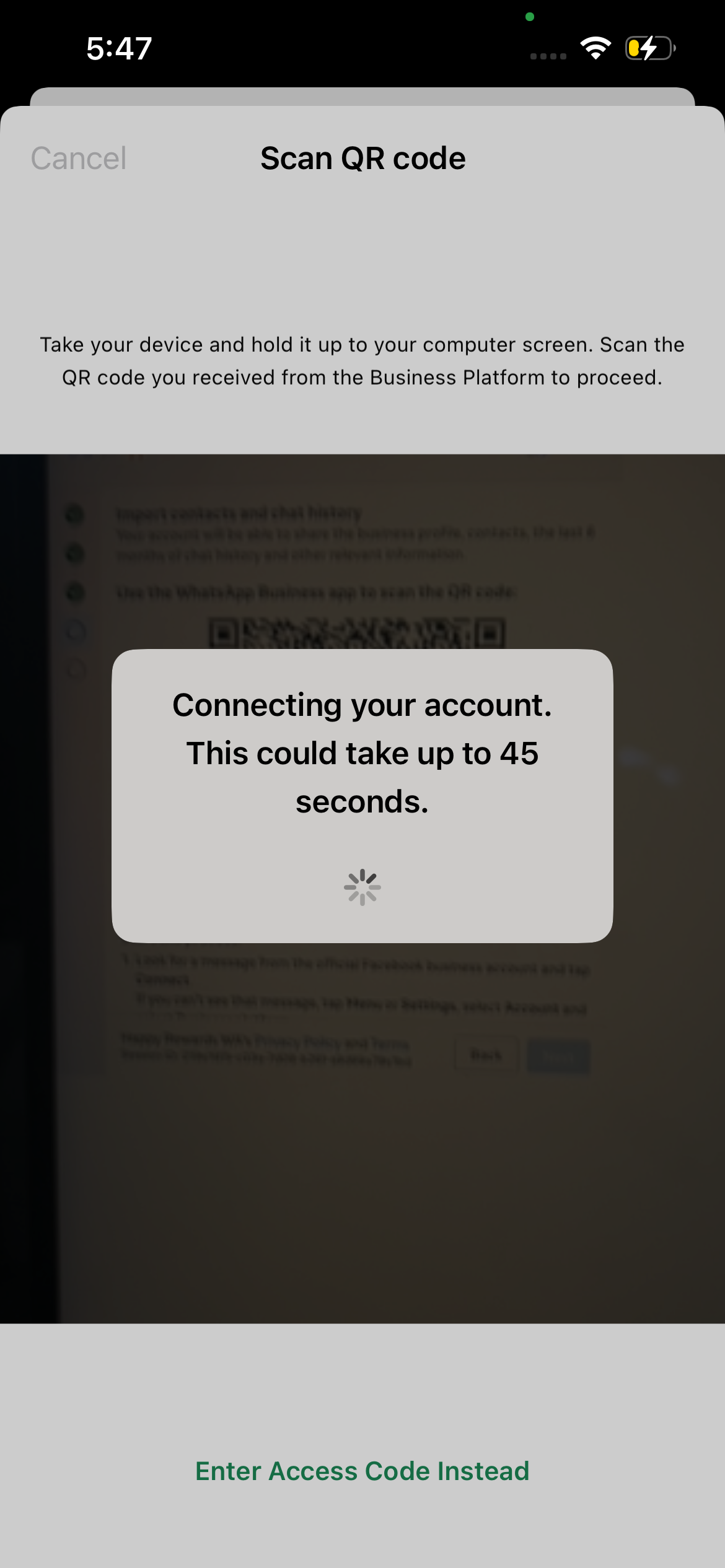
Execute QR Scan Pairing
Scan the QR code. You'll see a 'Connecting... this could take up to 45 seconds' popup appear on your screen while Meta secures the link.
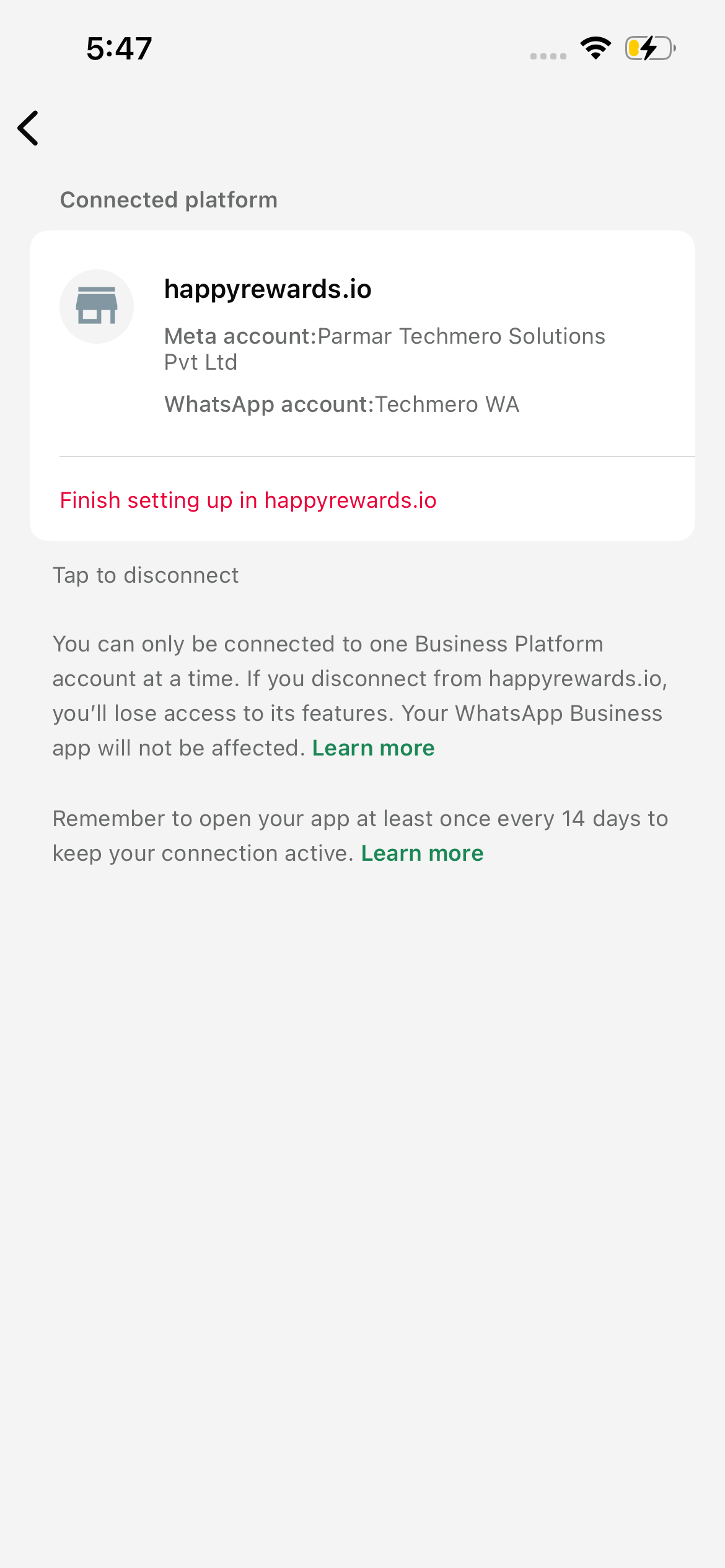
Platform Connection Success
Once the connection resolves, you will see a success screen on your mobile phone confirming a link to happyrewards.io.
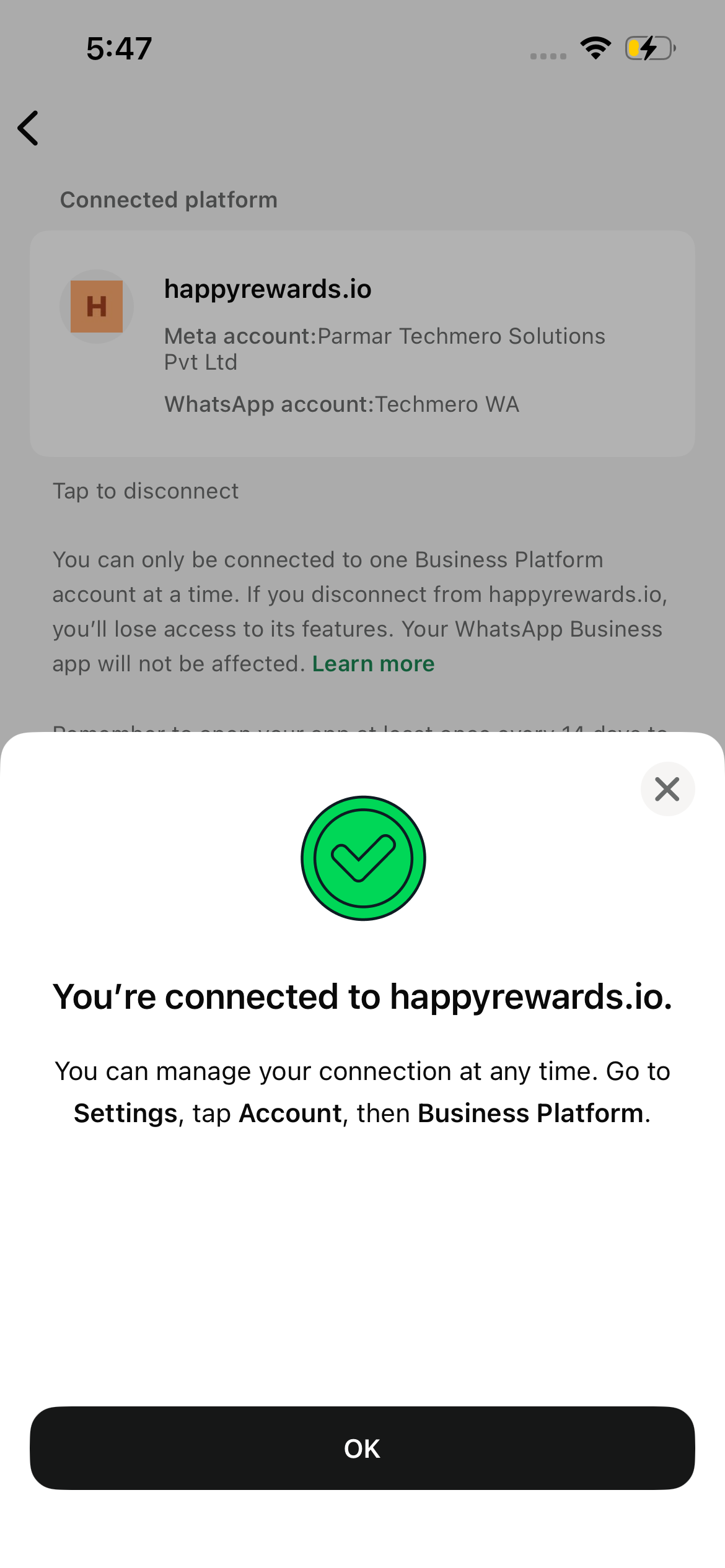
Mobile Phone Configuration Completed
You'll see a final mobile pop-up confirming your connection status. Your physical phone work is now completed! Put the phone down and return to the computer dashboard.
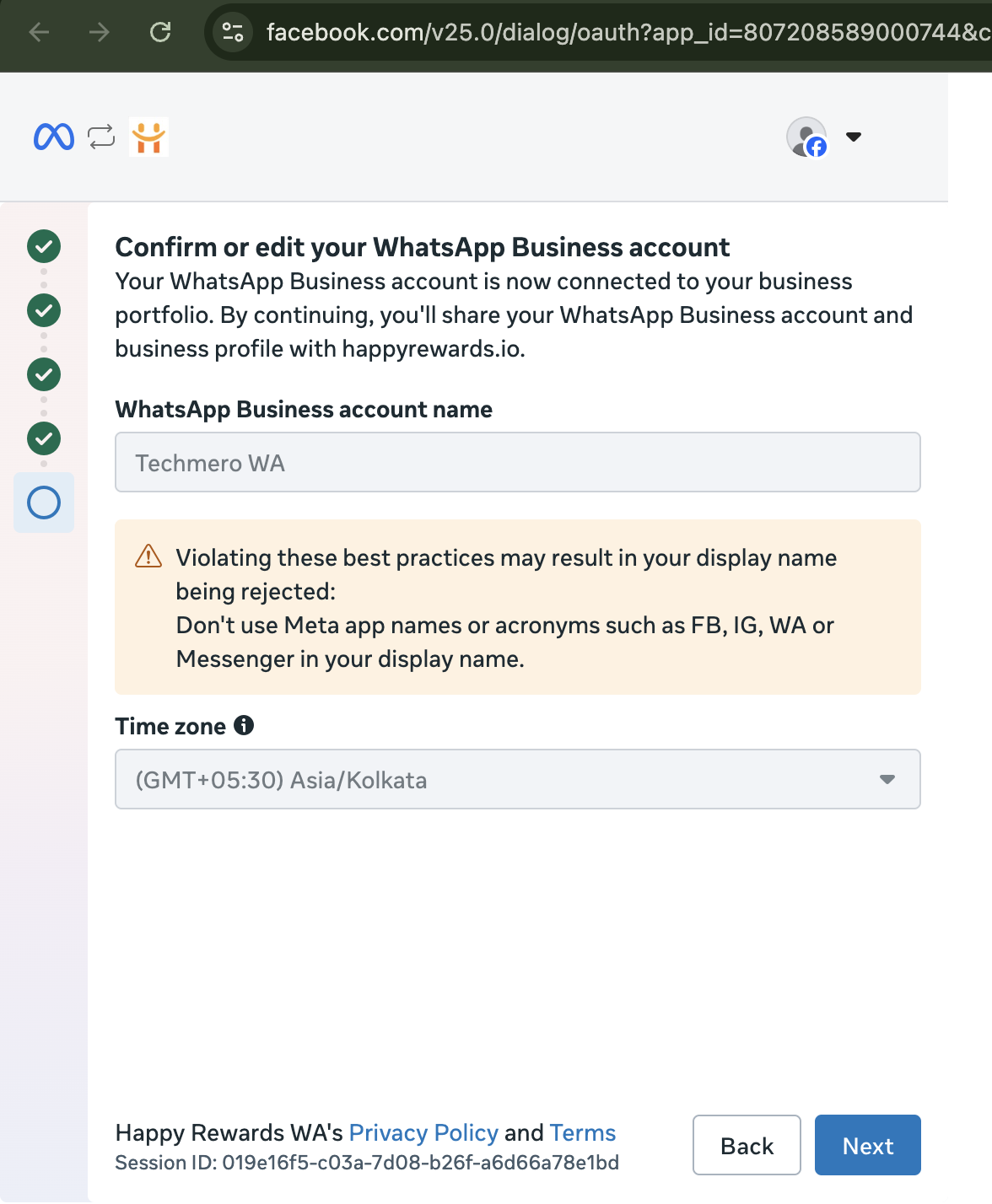
Define Account Details & Timezone
On your computer screen, enter your official WhatsApp Business Account Name and choose your correct business timezone, then click **Next**.
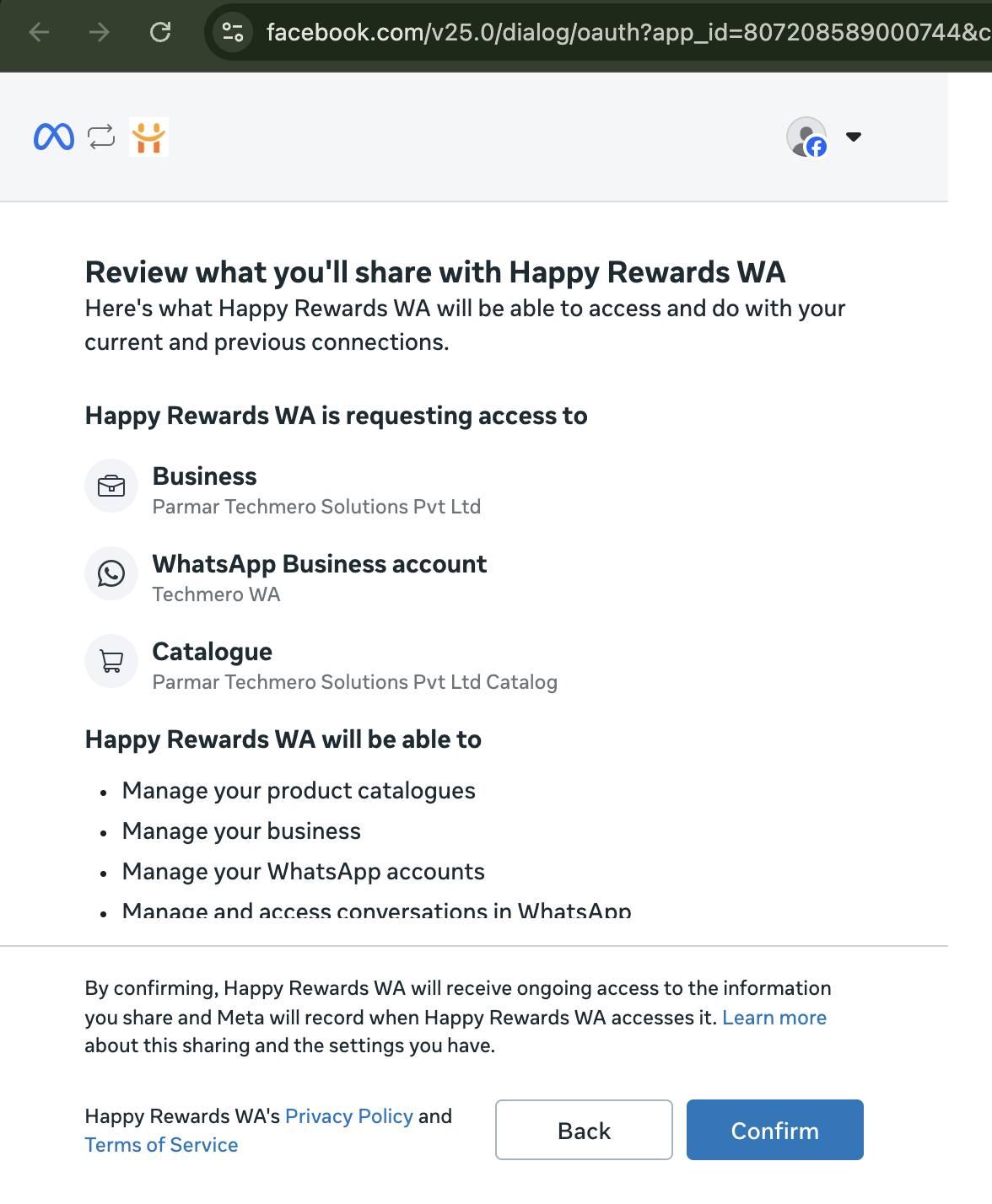
Review Coexistence Setup
Review your public connection details and WABA credentials on the summary page. Click **Confirm** to authorize the integration.
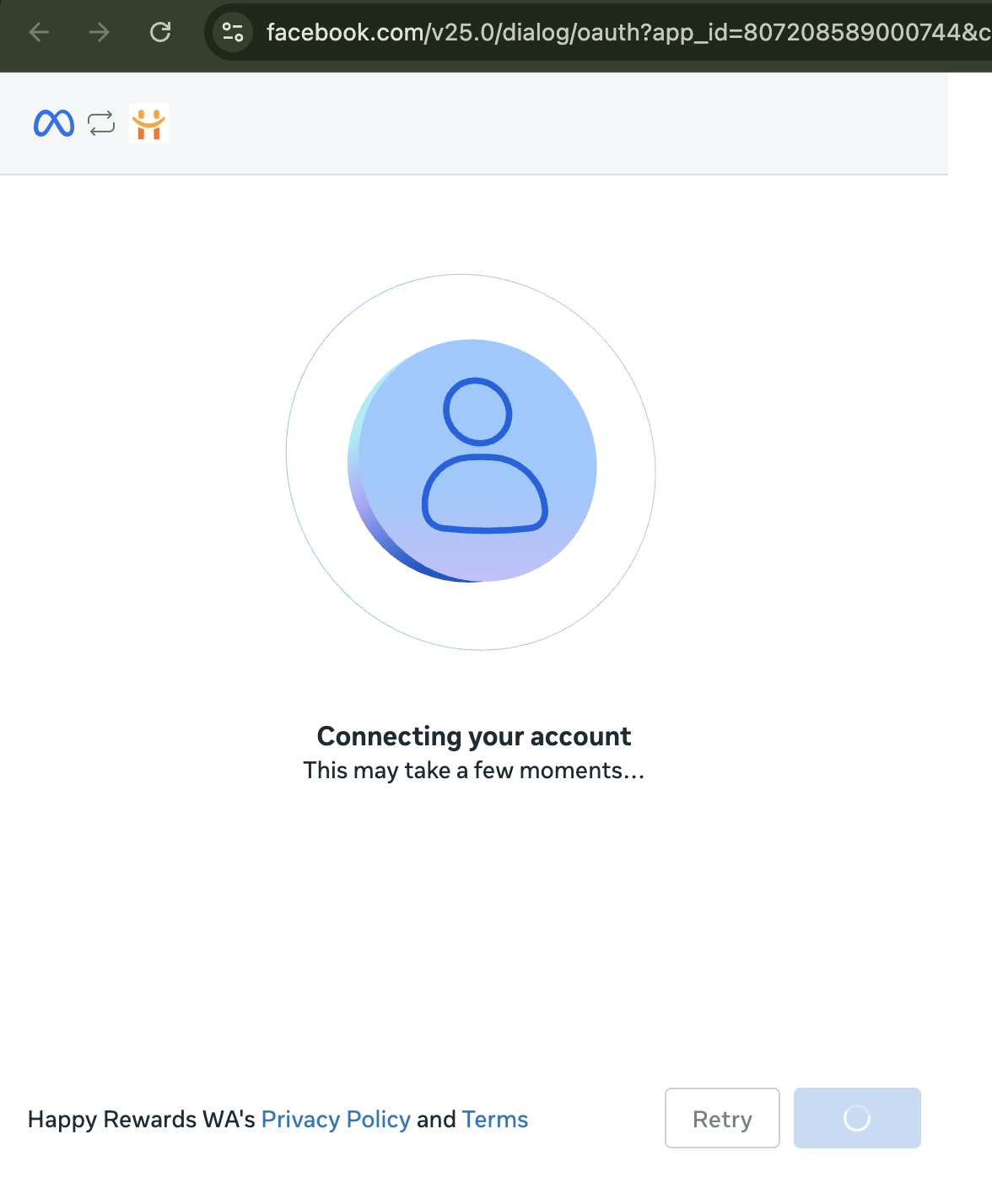
Connecting Account Loader
Wait a moment while the Meta system finishes the setup handshakes and secure routing to sync your workspace.
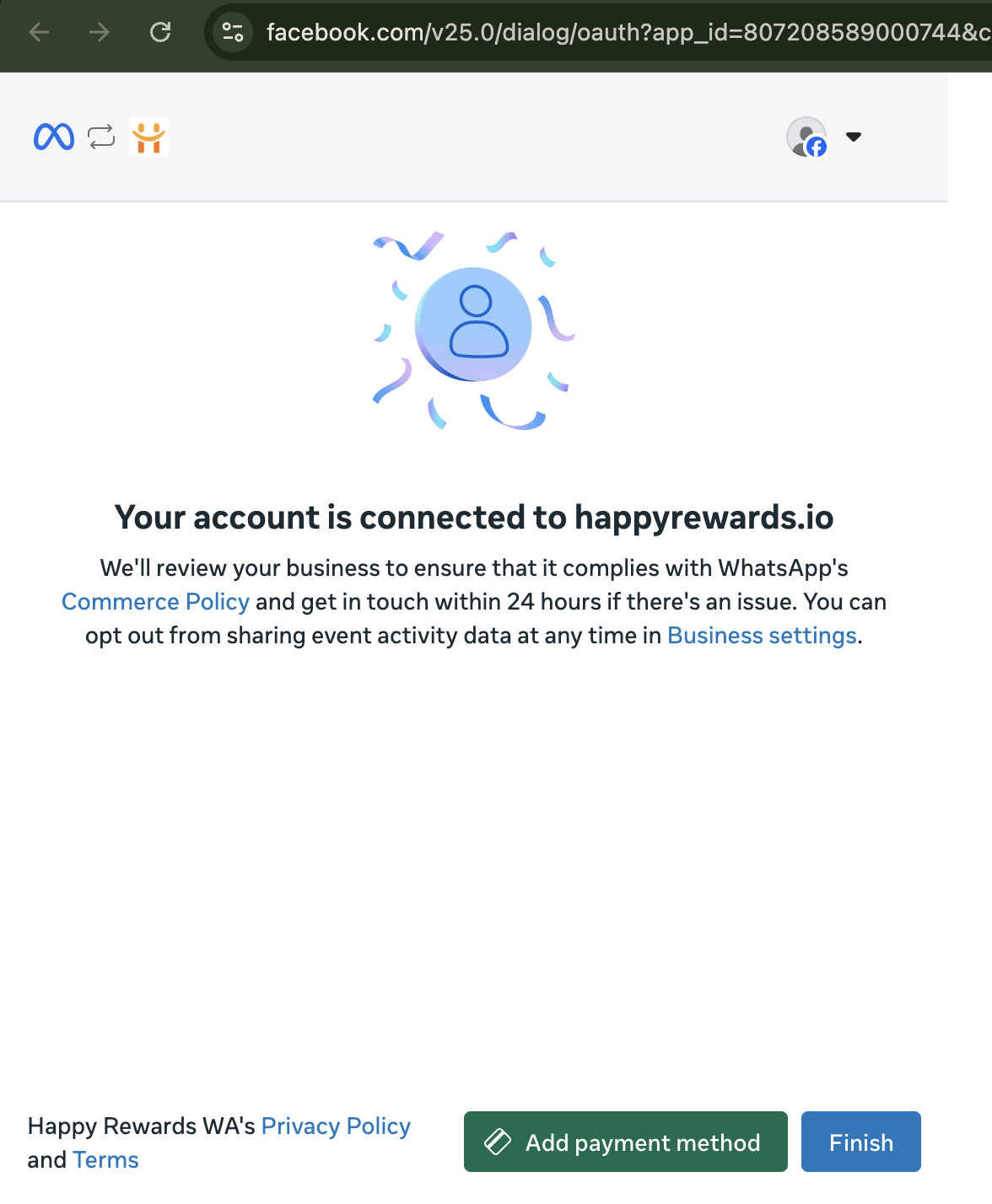
Coexistence Sync Completed!
You'll see a final confirmation screen indicating that your mobile number and database are fully connected. Click the **Finish** button, let the dashboard redirect you, and start managing your messages seamlessly. Done!