Link Existing WABA Account
Follow this visual walkthrough step-by-step to authorize and connect your existing WhatsApp Business accounts seamlessly from the Meta developer console.
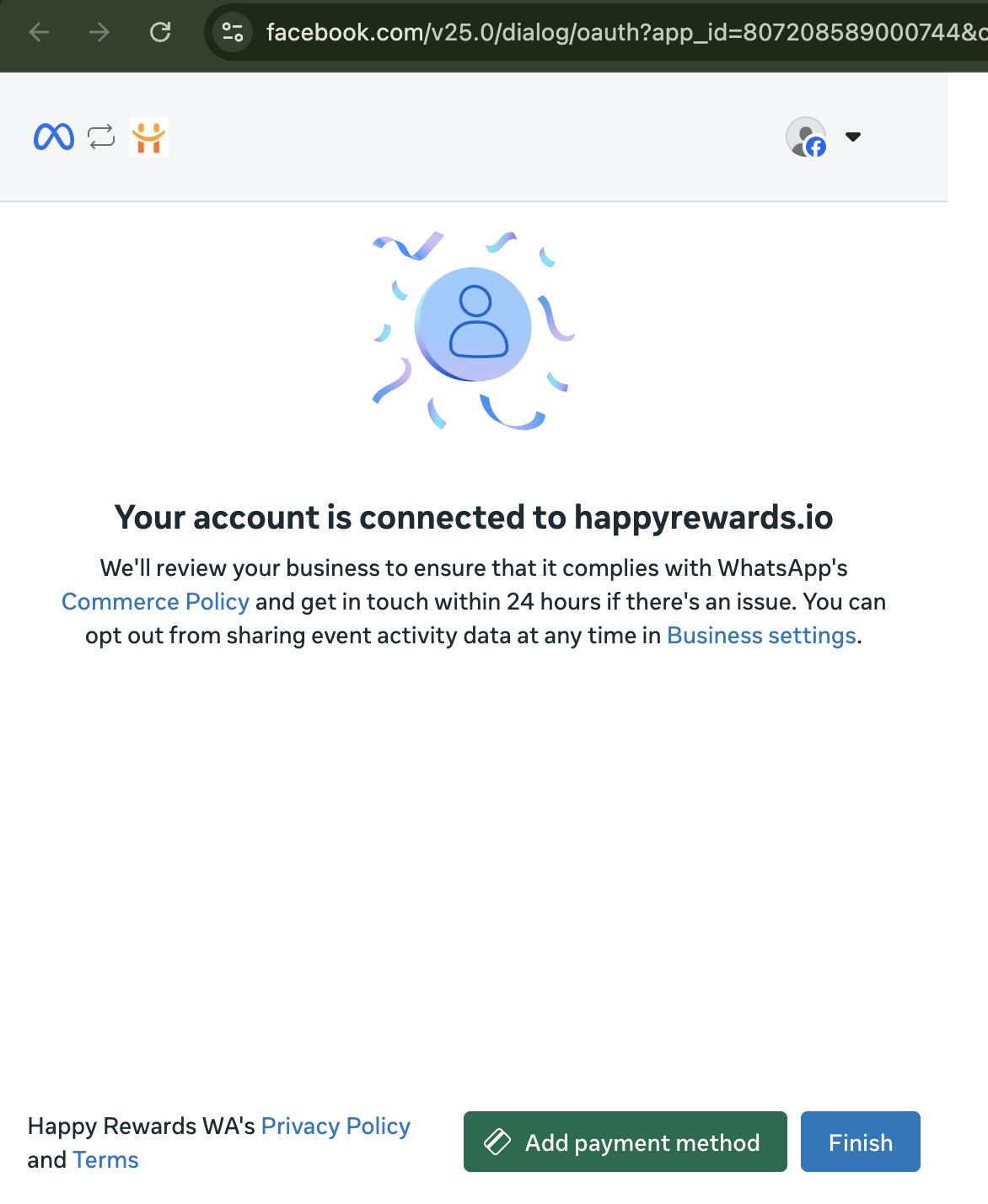
Welcome to Embedded Signup
Seamlessly connect your WhatsApp business account to our workspace. This onboarding process will walk you through registering and connecting your business account to your partner. You will be able to communicate with customers at scale and send messages with optimization.
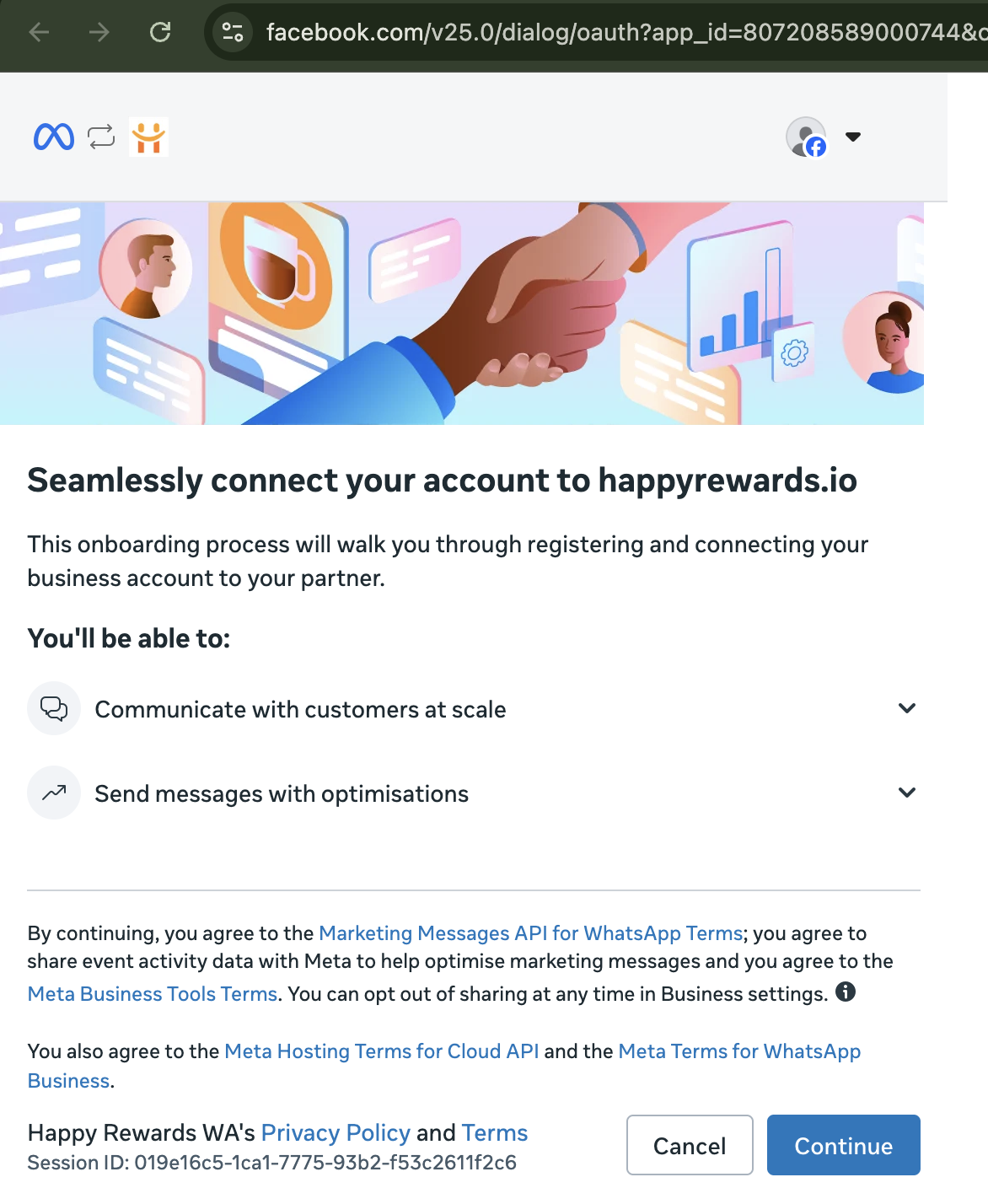
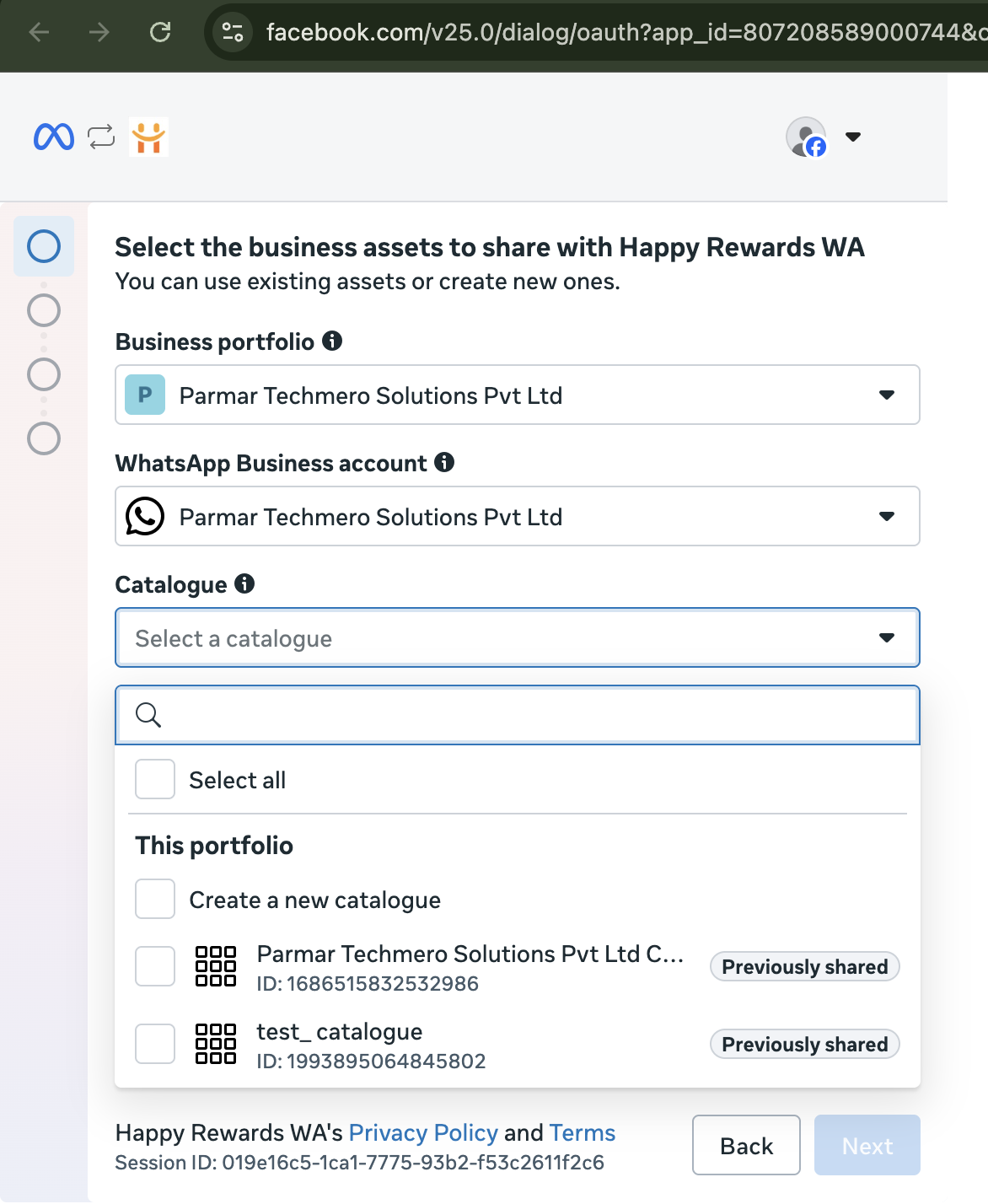
Select Business Portfolio
Select the correct Meta Business Portfolio from the provided dropdown to associate it with the incoming WhatsApp connection.
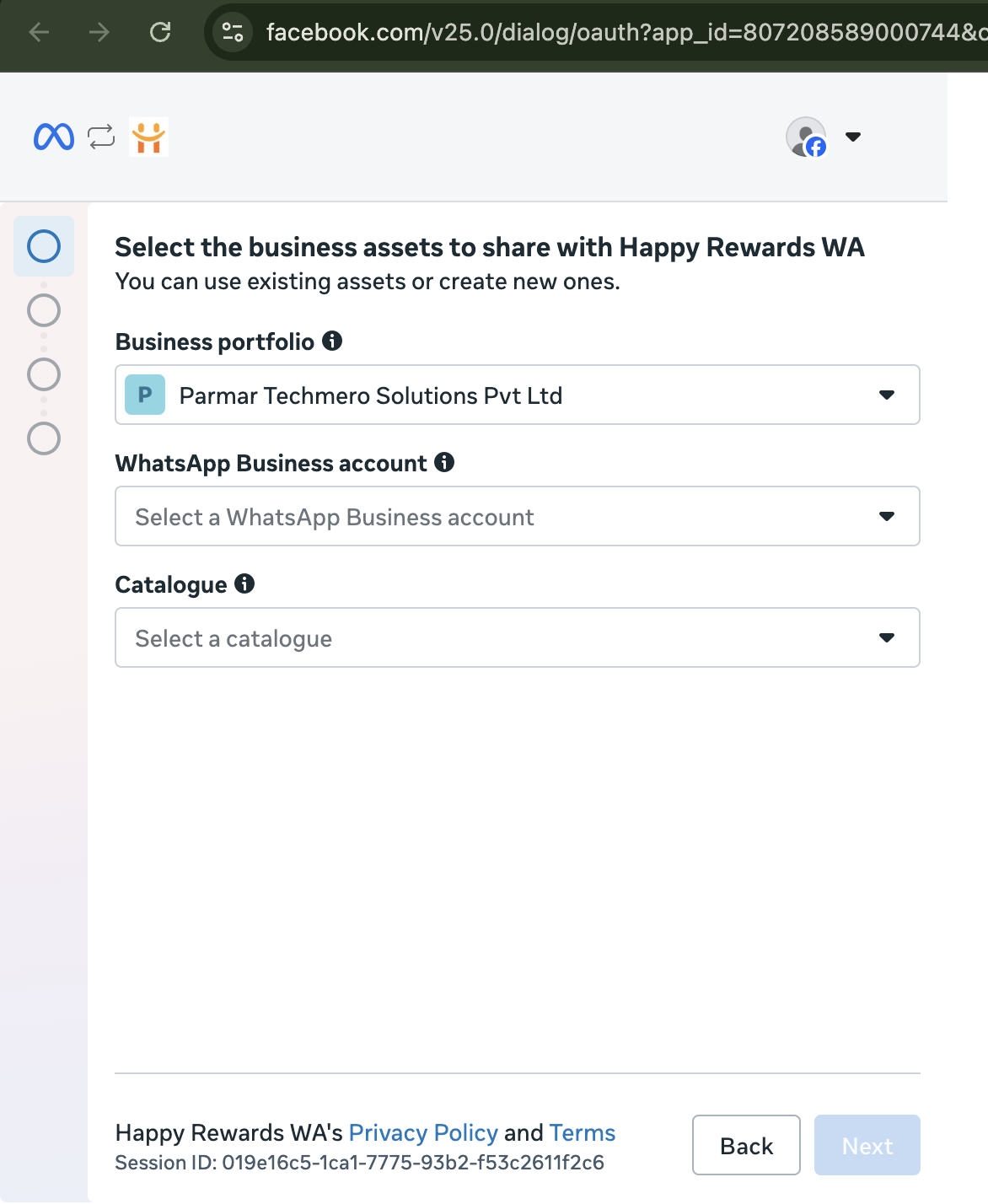
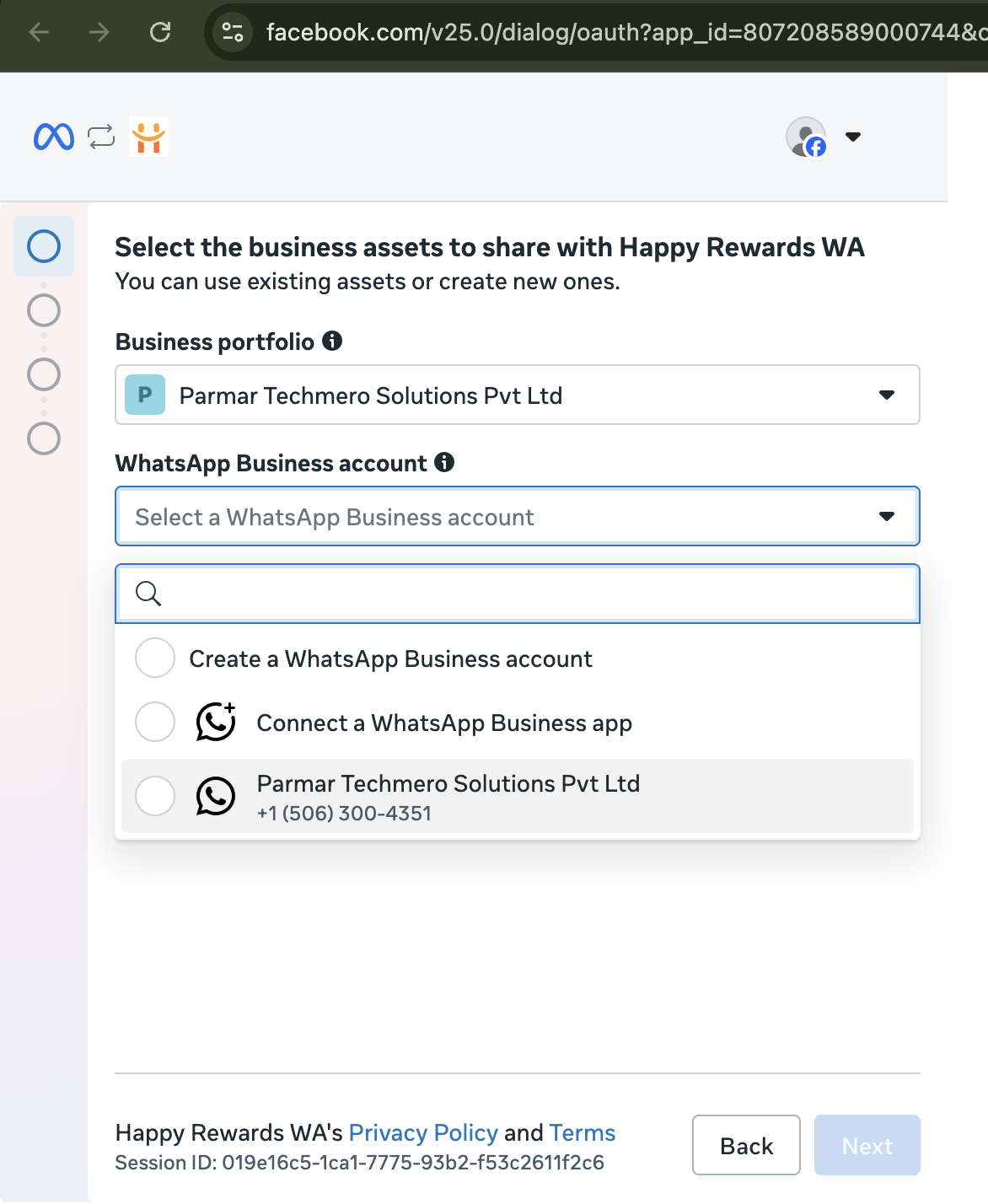
Select WhatsApp Business Account
Select your desired active WhatsApp Business Account (WABA) from the list generated below, or click to register a fresh one.
Catalog Access Permissions
Select which connected product and commerce catalogs to allow to manage or view, enabling seamless product catalog sharing inside chats.
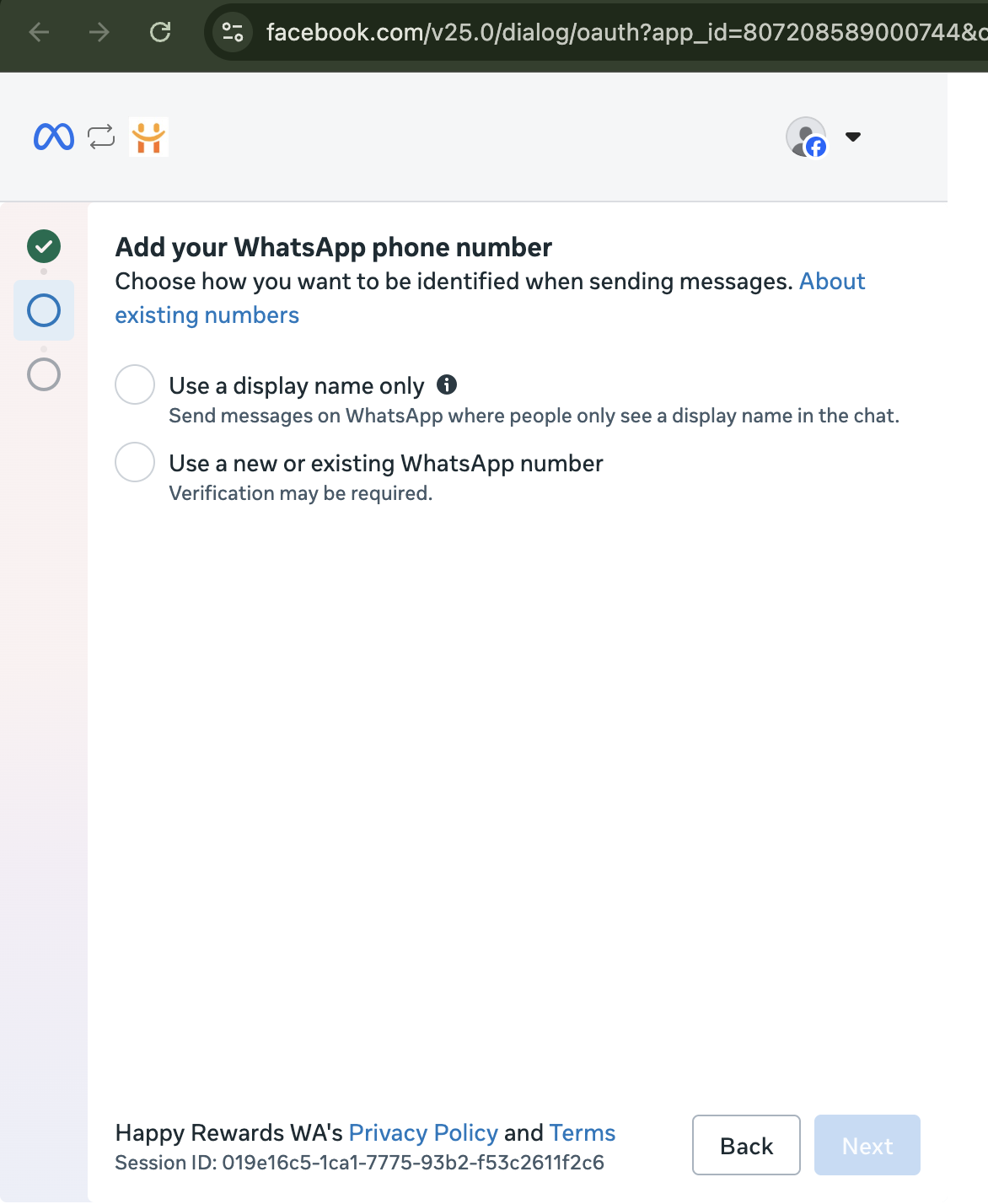
Add and Define Phone Number Options
Add your active business phone number. You will receive 2 connection options: use a fresh display name profile, or continue with an existing WhatsApp Business profile setup.
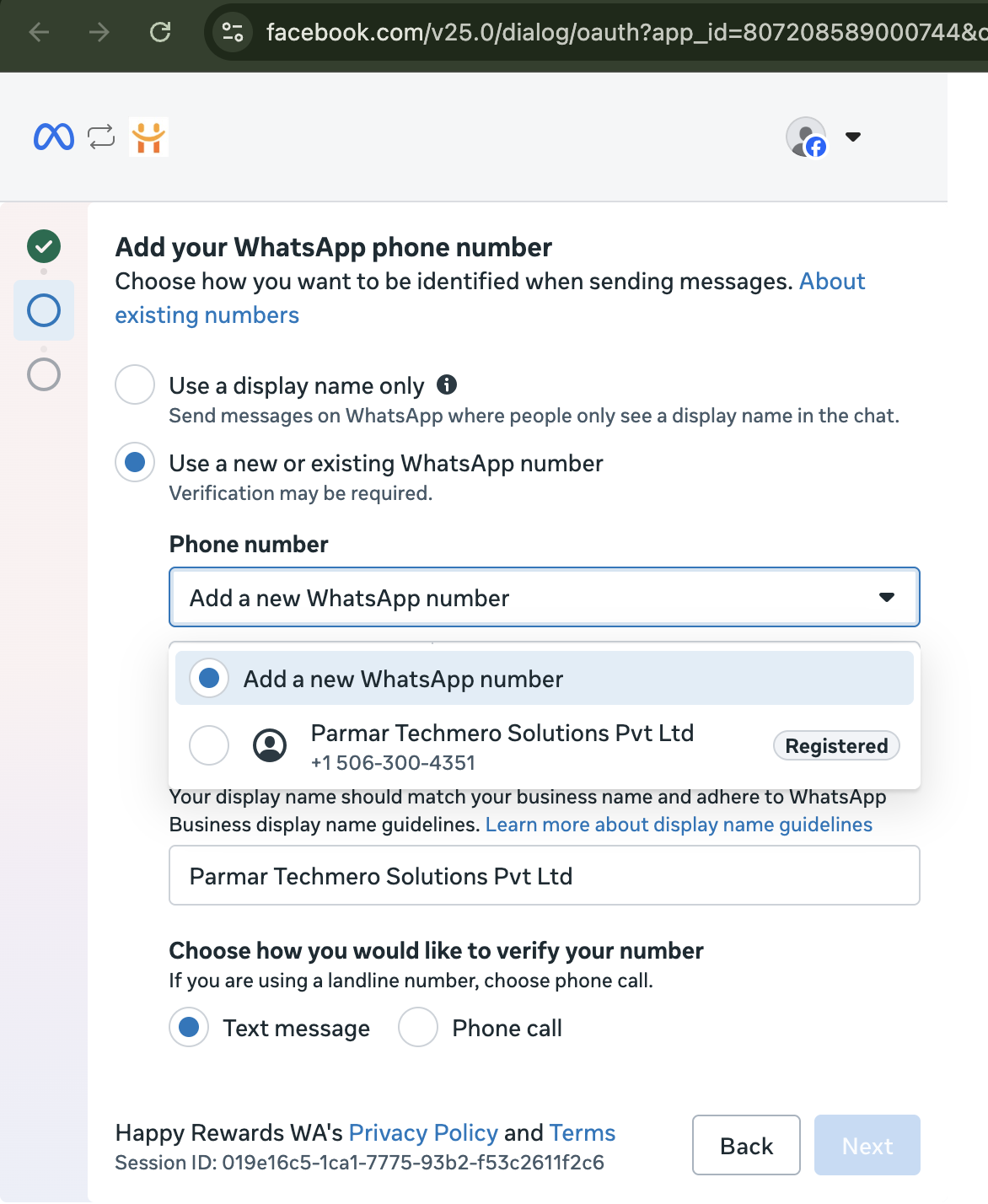
Select Existing Phone Number
On existing profiles selection, identify and click to confirm the specific phone number you wish to migrate to our system.
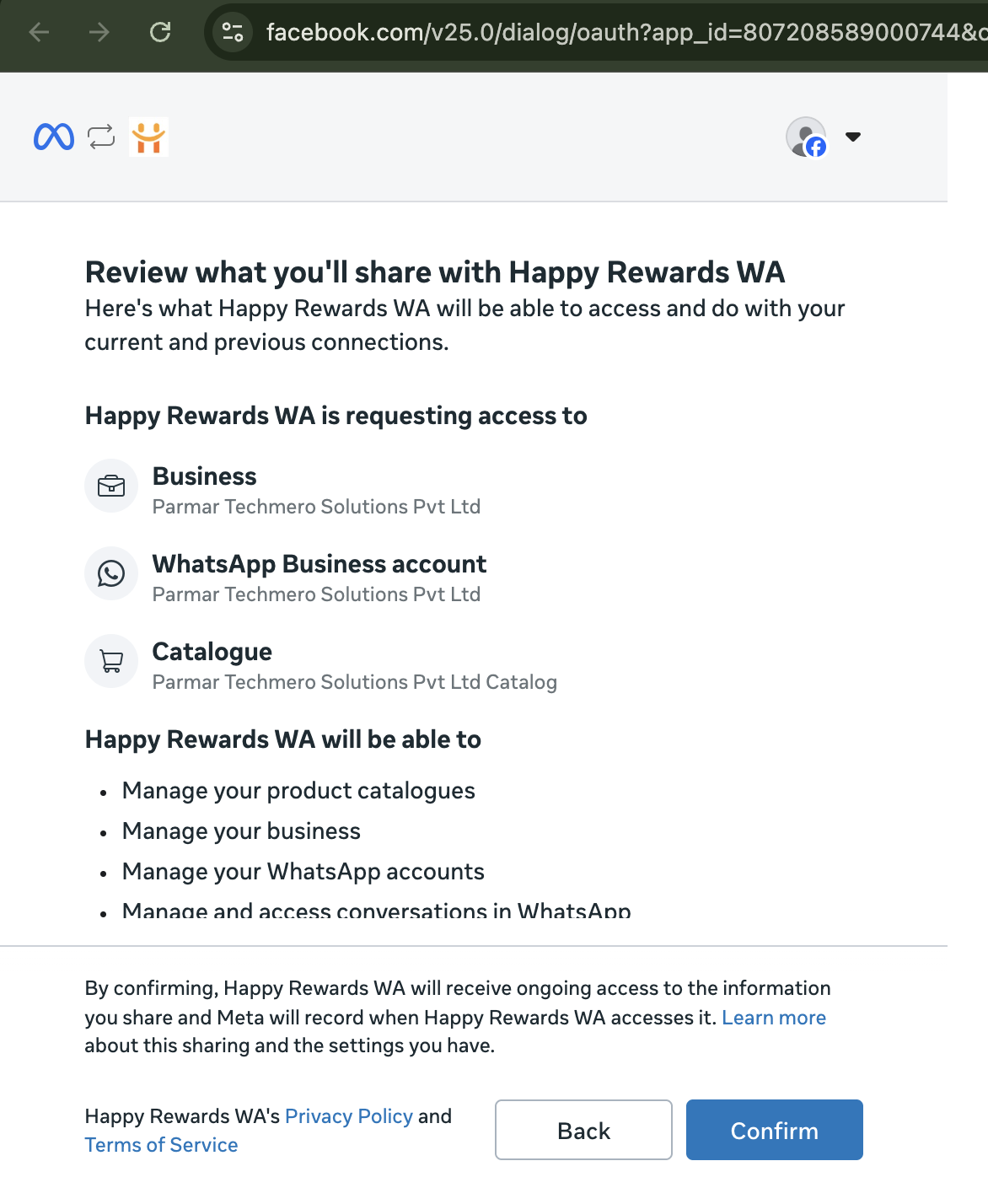
Review Info and Confirm
Review all authorization scopes, profile display names, and details. Click **Confirm** to authorize secure system connectivity.
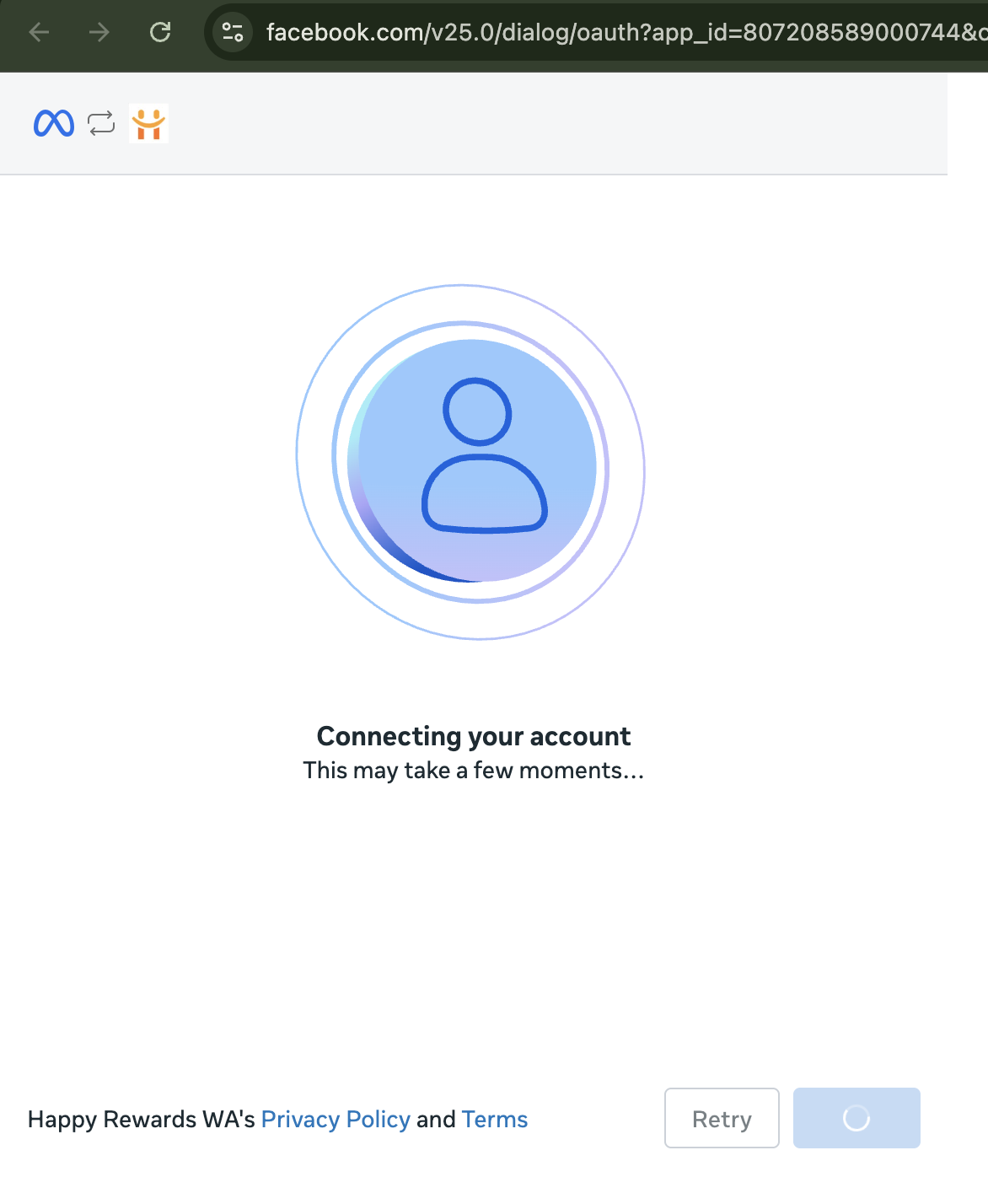
Connecting and Synchronising
Please wait while Meta finishes loading and establishes secure handshakes to synchronise accounts to our platform. Do not close the window.
Completed! Select Active Number
Once the 'Connected' message appears, click the final **Finish** button. You will be securely redirected back to our system dashboard. Wait a moment there for live sync to resolve, and finally select your desired phone number to complete the setup!